Set up MCP once for your Agents
MCP lets an Agent use tools supplied by another program or service. Skillshare stores the connection settings once and writes each supported Agent's native configuration. It does not run a gateway or keep a background server alive.
Supported MCP clients include Claude Code, Codex (the CLI, the IDE extension and the ChatGPT desktop app share one config), Cursor, VS Code, OpenCode, Kilo Code, Grok CLI, Antigravity (AGY), Amp, Claude Desktop, Cline, Copilot CLI, Factory, Gemini CLI, Goose, Junie, Kiro, LM Studio, Warp and Windsurf, plus Pi ≥ 0.99.0 through its built-in MCP. See the destination and authentication limits for each client. The dashboard shows the clients available in your current scope.
For example, share Playwright with Amp, Gemini CLI and Kiro:
mcp:
  servers:
    playwright:
      command: npx
      args: ["-y", "@playwright/[email protected]"]
      targets: [amp, gemini, kiro]
You do not need to learn each client's JSON or YAML format. Skillshare converts
the definition when you run skillshare sync mcp. The receiving client starts
the command, so Node.js/npx must be available in that client's environment.
The exact version after @ is optional. Without one, or with latest, a tag or a
range, npx may start a newer release each time, so skillshare mcp check warns
about it; the server still syncs and starts. See
Check servers before an Agent starts them.
Start with the guided setup
Run skillshare mcp to browse and manage connections from the terminal. Use /
to filter, e to edit, d to remove, or r to restore from a backup. Every interactive change is previewed before saving. Use
skillshare mcp --no-tui for plain status output.
Initialize Skillshare first if this is a new installation, then run:
skillshare mcp add
Paste the URL or JSON supplied by your MCP provider, give it a name, select your
Agents, and review the changes. Save and sync applies the settings immediately;
Save only keeps the definition for a later skillshare sync mcp.
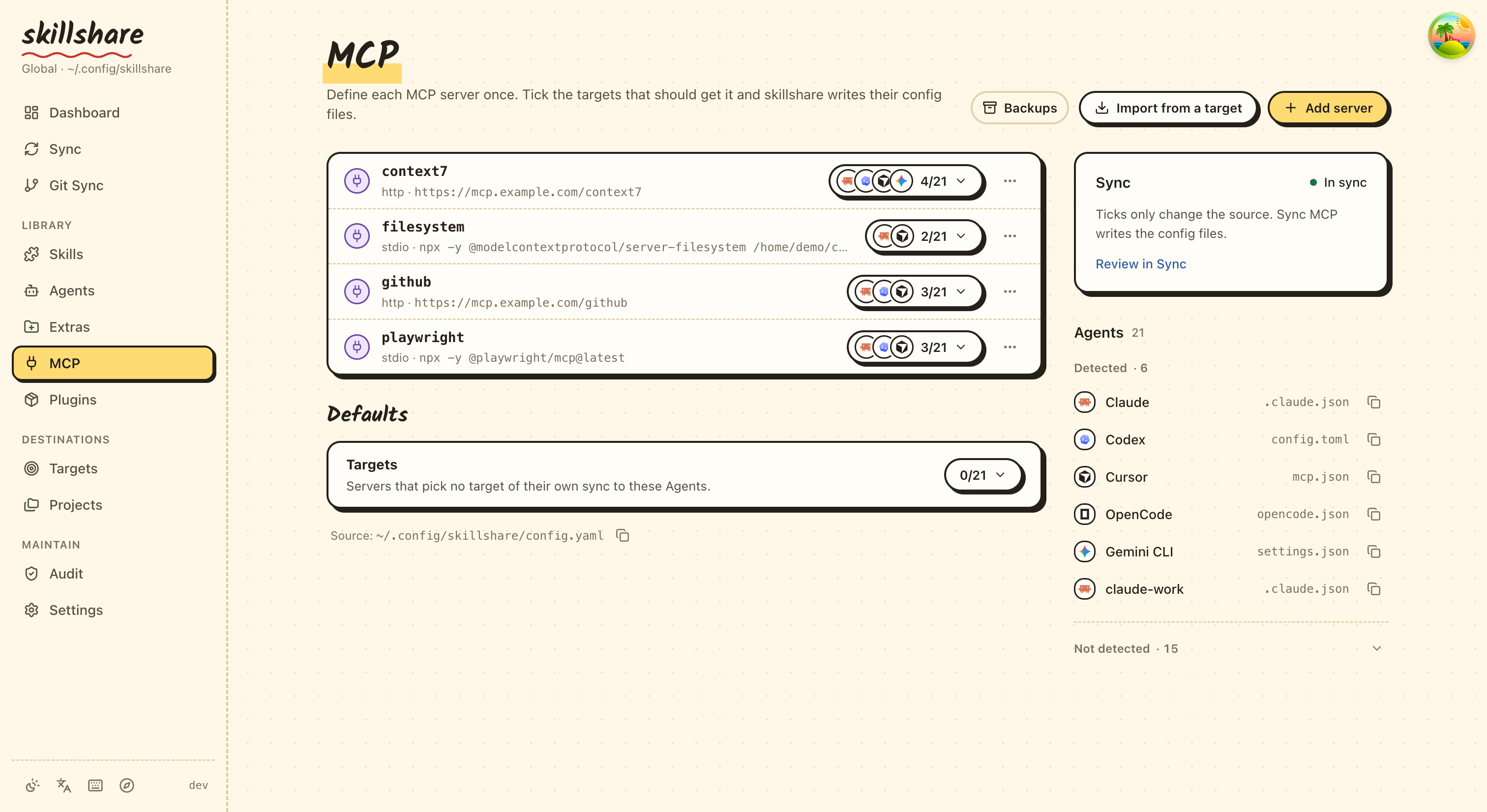
In the dashboard, Add server takes either shape: fill in the fields, or paste
a configuration. The paste side also loads a file, which is the browser's
equivalent of mcp import --file. Pasted JSON is recognized automatically; for
TOML, choose whether it came from Codex or Grok. When the paste holds one server
and Pi is ticked, the dialog also shows the Pi settings of the form: tool exposure and
other Pi settings. The form's Other Agent settings takes any other Agent's native fields as
JSON, such as a Codex approval mode; see options. The Skillshare tab adds skillshare mcp serve, which
serves your skills over MCP to an
Agent that does not get them by sync: choose which skills, tick the Agents, and it marks
the Agents that already sync skills and would see them twice. In a project's MCP tab,
From another project fills the form with a server another project already has; the copy
uses this project's Agents, not the other project's. Import from a target is
separate and reads the servers an installed Agent already has. Either way the
dashboard uses the same source, validation, preview and conflict rules as the
CLI. Sync MCP, in the MCP page's Sync box, writes the MCP config files only. The
Sync page also has Sync all resources for skills, agents, extras and MCP.
For Pi, the import source menu lists Pi's mcp.json and, for servers set up with
pi-mcp-adapter before 0.23.0, its mcp-adapter.json; each reads only that file.
The adapter file is only read: sync writes the imported servers to Pi's mcp.json.
The displayed paths follow the current scope, PI_CODING_AGENT_DIR, and any account
directory.
Project imports read .pi/ inside that project. Keep personal servers and
credentials in the global file; use project files only in trusted projects.
The Config editor formats YAML when you save, using two-space indentation and
preserving comments. Click a field to see its explanation in the right panel,
including mcp, sources.mcp, connection fields and environment references.
After syncing, reload your Agent. Complete any login or approval in that Agent. Skillshare does not test the connection, install the server program, or copy login sessions. A successful sync means the configuration was written, not that a tool call has succeeded.
Understand the two connection types
| Provider gives you | Connection | Example |
|---|---|---|
| A command and arguments | stdio: the Agent starts a local process | command: npx plus args |
| An MCP endpoint URL | Streamable HTTP: the Agent connects to a running service | url: https://example.com/mcp |
Either way, the definition is stored once and written into each Agent's own file:
You usually do not need to set transport; Skillshare infers it from command
or url. A URL can point to a service on your own computer or a remote service.
Use the provider's actual MCP endpoint, not an ordinary website URL. Legacy SSE
configuration is rejected rather than silently converted.
Limit which tools reach the model
A server can offer many tools. Set tools once to keep only some of them, or to hide
some, and Skillshare writes it in each Agent's own format:
skillshare mcp edit github --tools-allow 'get_*,search_code' --tools-deny get_secret
skillshare sync mcp --dry-run
In the dashboard, open the server and use its Tools section; Load tools from
server lists the server's tools; untick the ones the model should not get. Pi applies the whole policy; Codex and
Copilot CLI apply exact names; other Agents do not apply it. The preview and
skillshare mcp check name each Agent that leaves part of it out. See
Tool policy.
Keep everything in one file
This is the default. Your existing skills and agents remain directory sources;
MCP connections are structured settings under mcp.servers:
sources:
  skills: ~/.config/skillshare/skills
  agents: ~/.config/skillshare/agents

mcp:
  targets: [claude, codex, cursor, vscode]
  servers:
    company-docs:
      url: https://docs.example.com/mcp
company-docs is a name you choose. It does not install or look up a server.
Replace the example URL with your provider's endpoint. mcp.targets selects
receiving clients independently of your skill targets. A server's optional
targets list overrides that default.
Split MCP into its own file
Use an external source when you want to share or version it separately:
sources:
  skills: ~/.config/skillshare/skills
  agents: ~/.config/skillshare/agents
  mcp: ./mcp.yaml

mcp:
  targets: [claude, codex, cursor]
servers:
  company-docs:
    url: https://docs.example.com/mcp
Relative paths are resolved from the directory containing config.yaml.
For .skillshare/config.yaml, ./mcp.yaml means .skillshare/mcp.yaml.
Absolute paths and ~/ are also supported.
To share the file between machines with push / pull, keep it inside a
root-scope repository; see
Cross-Machine Sync — MCP servers.
Use one source at a time: sources.mcp and mcp.servers cannot coexist,
including mcp.servers: {}. To switch, move the servers mapping into the external
file, add sources.mcp, and remove inline mcp.servers. Keep mcp.targets in
config.yaml. Preview before syncing:
skillshare sync mcp --dry-run
Both CLI and dashboard edits follow the active source. A missing or invalid
external file stops synchronization; it never means “delete all servers.” Use an
explicit servers: {} to remove definitions intentionally, then preview the
managed removals.
Local programs and credentials
mcp:
  targets: [claude, codex]
  servers:
    internal-tools:
      command: company-mcp
      args: [--workspace, /path/to/workspace]
      env:
        COMPANY_TOKEN:
          fromEnv: COMPANY_TOKEN
    company-docs:
      url: https://docs.example.com/mcp
      bearerToken:
        fromEnv: DOCS_TOKEN
Install the required local program yourself. The Agent must be able to find it and read any referenced environment variables in its own environment. A variable set only in a terminal may not reach an Agent launched from the desktop.
Skillshare writes variable references and never resolves them. Keep actual tokens
out of source files, URLs and command arguments. Known sensitive environment or
header keys require fromEnv. Import converts recognizable literal secrets,
including a password inside a URL value such as DATABASE_URL, to references and
reports the variable you need to set. Command arguments have no portable reference
syntax: import warns when an argument looks like a credential but keeps it as plain
text. Import cannot identify every credential format, such as a token in a URL path.
Codex forwards local variables by name, so env.KEY.fromEnv must also be KEY
when Codex is selected. A target that cannot represent a setting blocks the
preview instead of dropping it. Client-specific placeholders and input prompts must
be resolved explicitly before import. Agent-specific fields such as Codex
startup_timeout_sec or cwd are not imported; import lists them as warnings, and
sync keeps them in that Agent's existing entry. To manage them from the source, set them
under the server's options.
Import existing connections
skillshare mcp import                         # Choose an Agent and a server
skillshare mcp import docs --from claude --target claude --target codex --sync
Import one server at a time. When an Agent's entry already matches the imported
definition, it becomes managed without changing that Agent's file. When it
differs, most often because a literal token became an environment reference, the
CLI stops instead of rewriting a working entry. Set the reported variables, then
rerun with --replace, or leave that Agent out of --target. The dashboard
preview shows the same entry as a conflict.
If the source already contains the name, use the dashboard's Edit action or
CLI --replace. On import, --replace also rewrites the imported Agent's own
entry; Save only then records that entry as the baseline without changing the
file, so the next sync rewrites it and still detects edits made in the meantime.
It never overrides other conflicting native entries. In the MCP dashboard, a conflict
you can settle offers an import action named after the Agent, such as Import from
cursor, to adopt that version, or Replace with source to overwrite that entry.
A conflict held by another Skillshare configuration that still exists offers neither,
because only that configuration can release the entry.
This is also how you take over a server an Agent already has under the same name: add it to the source. If the Agent's entry already matches, the next preview lists it as Take over, and sync records it as managed without changing the file. This is what happens when you tick the Agent you imported from after the import. If it differs, the preview shows a conflict instead of overwriting it. Import it to adopt the Agent's version, or replace it with the source definition.
The MCP dashboard also looks for servers already in your Agents' config files that Skillshare does not manage. When it finds some, a note above the server list says how many and in which Agents, and Import opens the import for the first of them. A project's MCP tab does the same for that project's files and imports into that project. See Servers Skillshare does not manage.
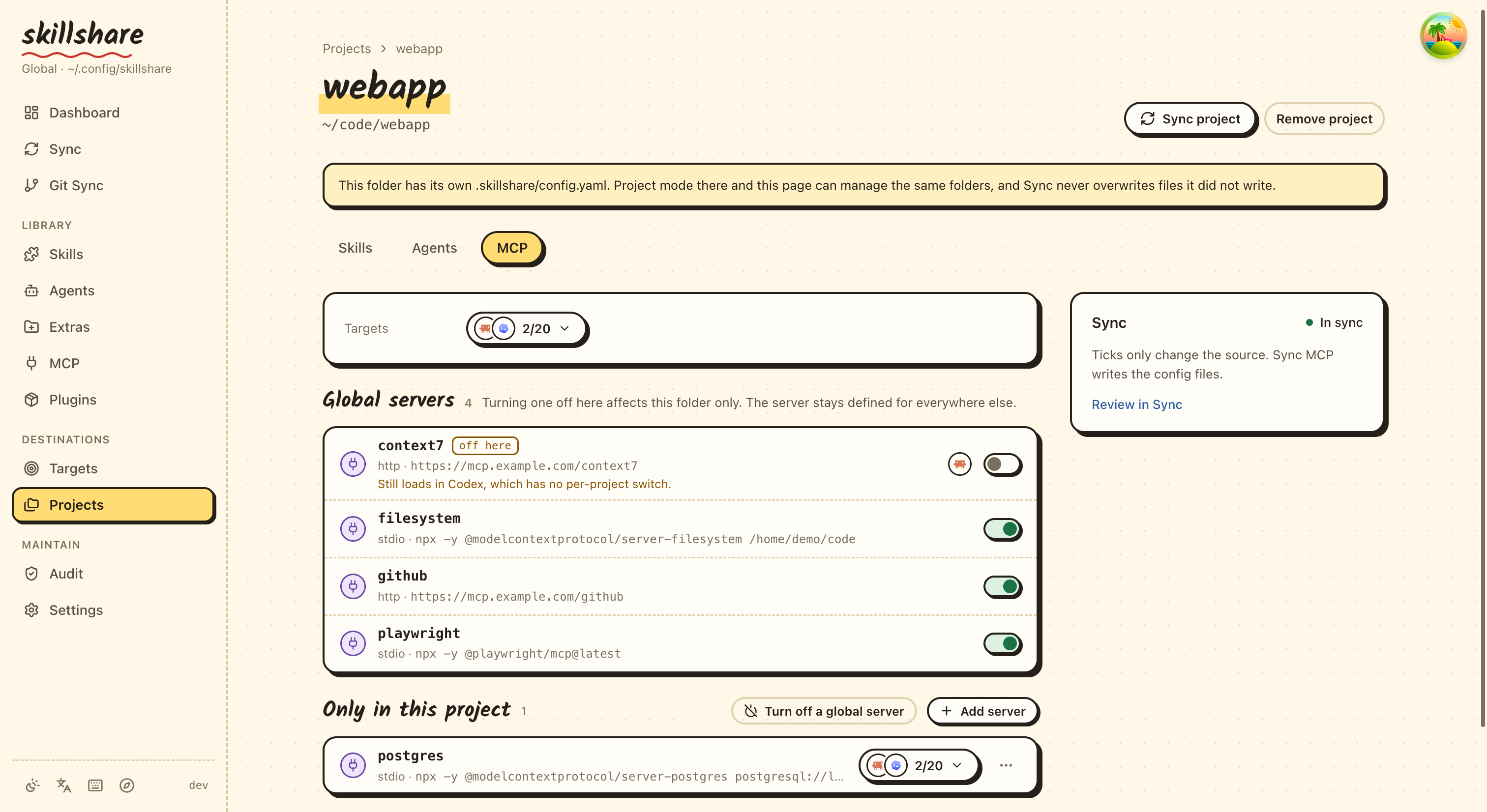
Turn off a global server in one project
A server in an Agent's global config loads in every project. To turn it off in one project, run this inside that project, using the name the server has in the Agent's global config:
skillshare mcp add company-docs --disabled --target opencode
skillshare sync mcp
In the dashboard, open it from the project folder with skillshare ui and choose
Turn off a global server, the button beside Add server.
This works with Claude Code, OpenCode, Kilo Code and Pi 1.0.1 or later. Other Agents are refused. The command reference shows what is written for each Agent and why the others are not supported.
Remove and restore
skillshare mcp remove company-docs
skillshare sync mcp --dry-run
skillshare sync mcp
Only unchanged entries previously managed by this configuration are removed. Unmanaged entries and entries edited by another program are protected. An Agent entry that already matched the source before Skillshare managed it, for example in a moved project, also stays; import it first if Skillshare should remove it.
In the dashboard, use the delete action on a server row. The dialog lists each
Agent file that will change. Remove from source only matches mcp remove
without syncing; Remove and sync also cleans the Agent files and is disabled
while a conflict is present.
To stop managing a server but keep it in your Agents, remove it with --keep-files,
or choose Stop managing in the dashboard's remove dialog:
skillshare mcp remove company-docs --keep-files
No Agent file changes, and later syncs leave those entries alone. See Stop managing a server.
Every native file change creates a private backup of the affected MCP entries. Skillshare keeps the newest 20 backups for each Agent file. The output includes its ID:
skillshare mcp restore BACKUP_ID --dry-run
skillshare mcp restore BACKUP_ID
In the dashboard, Backups & restore lists backups by day. Preview a backup to see the entries it would restore, then choose Restore this file.
Restore preserves unrelated settings and refuses to overwrite newer changes to the affected entries. It does not revert your source file; edit the source too if you want the restoration to survive the next sync. Backups may contain old native credentials, so keep the local state directory private.
Writes are atomic per file. A failure midway through multiple files leaves
completed files applied and reports their backup IDs. Fix the reported cause and
retry. The next MCP write, such as sync mcp or a dashboard sync, finishes
recovering an interrupted write, and previews already show that result. If the
Agent file was edited again in the meantime, entries that no longer match are
reported as conflicts.
Do not delete ownership state to “fix” conflicts: existing entries would become
unmanaged and need explicit import again. An entry whose owning configuration was
deleted does not need that: the conflict reports it as left over, and an import or
replacement from the conflict itself takes it over.
See the MCP command reference for supported paths, flags and current limitations.