Share memory across your AI tools
Keep decisions, lessons, and project context in one folder of Markdown notes. Connect your tools to reading guidance, then verify that each agent reads the relevant notes in a fresh session.
This walkthrough uses global mode with Claude and Codex configured as targets:
skillshare ui -g
All screenshots use English UI labels, notes, and dialogs in an isolated demo
home under /tmp/skillshare-memory-docs; the fresh setup screenshots use
/tmp/skillshare-memory-redesign-onboarding. Your paths will differ.
1. Create memory
Open Extras → Memory and click Create memory.
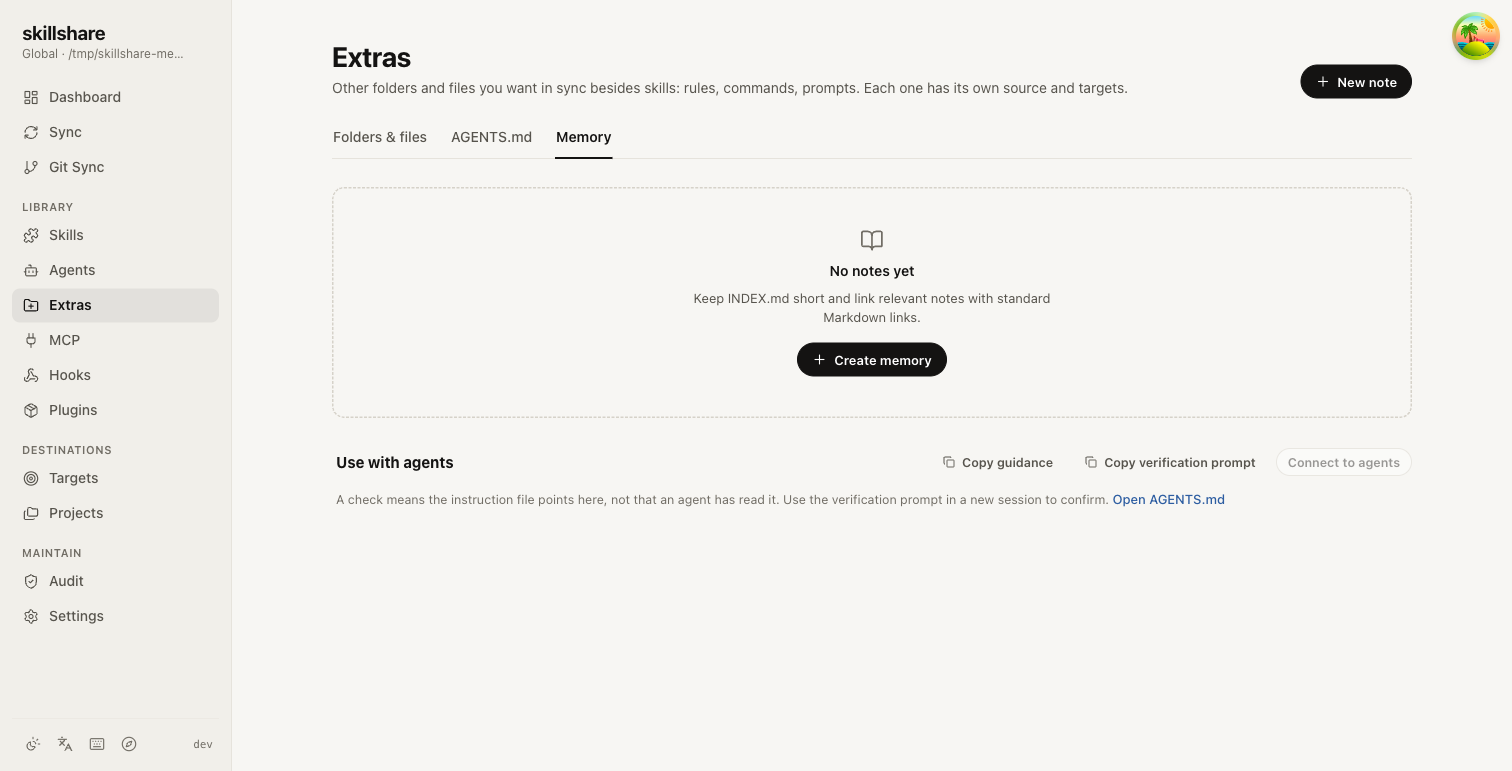
This registers a source-only extra named memory and creates missing starter
notes: INDEX.md is the short entry point; LEARNED.md records a lesson's date,
context, conclusion, and evidence. Existing notes and configuration are preserved.
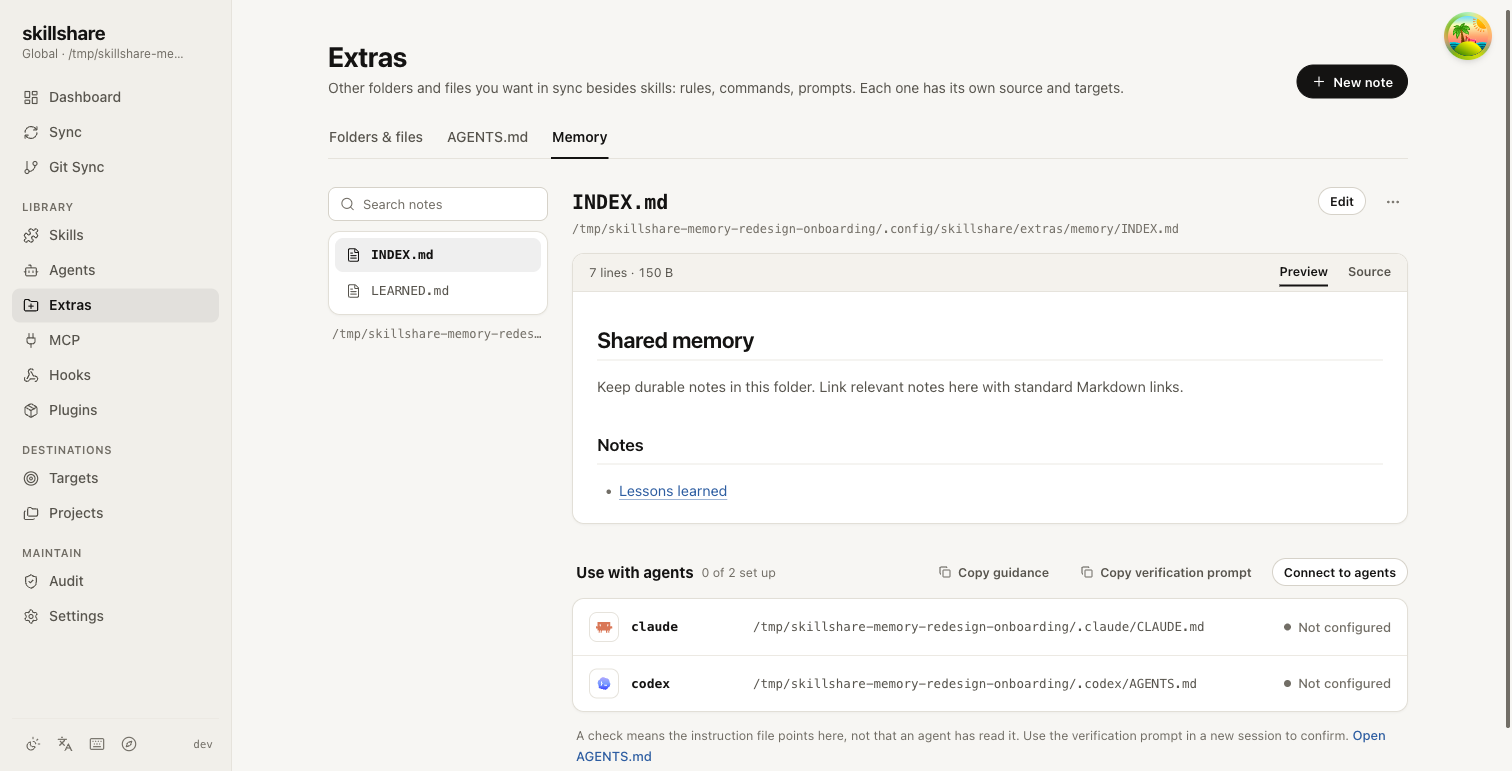
The default global folder is ~/.config/skillshare/extras/memory/. It also appears
in Extras → Folders & files, initially without targets. Agents on this machine
read this source directly; you do not need to sync copies of the notes to them.
2. Connect your tools
In Use with agents, click Connect to agents. Select the tools you want, then click Review changes.
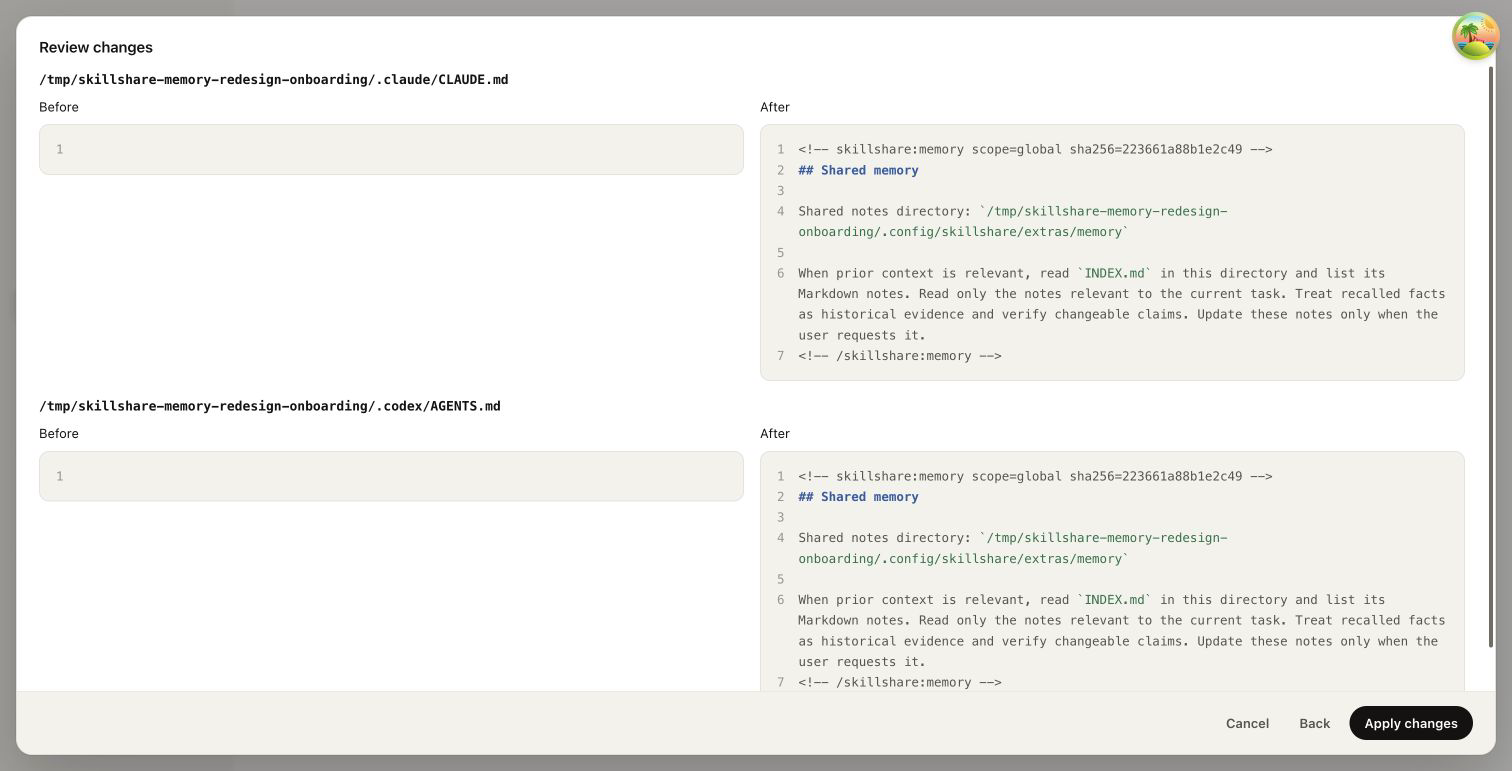
Review the file paths and Before / After content, then click Apply changes. Skillshare adds a managed reading-guidance block to an existing instruction file or the shared source that the tool already reads. If there is no file yet, it can create one. The block has scope and content-hash markers; all other content, existing assignments, and connection modes are preserved. Existing files are backed up before changes. A shared file may also be read by other tools; the review warns you about these tools and any known character limits.
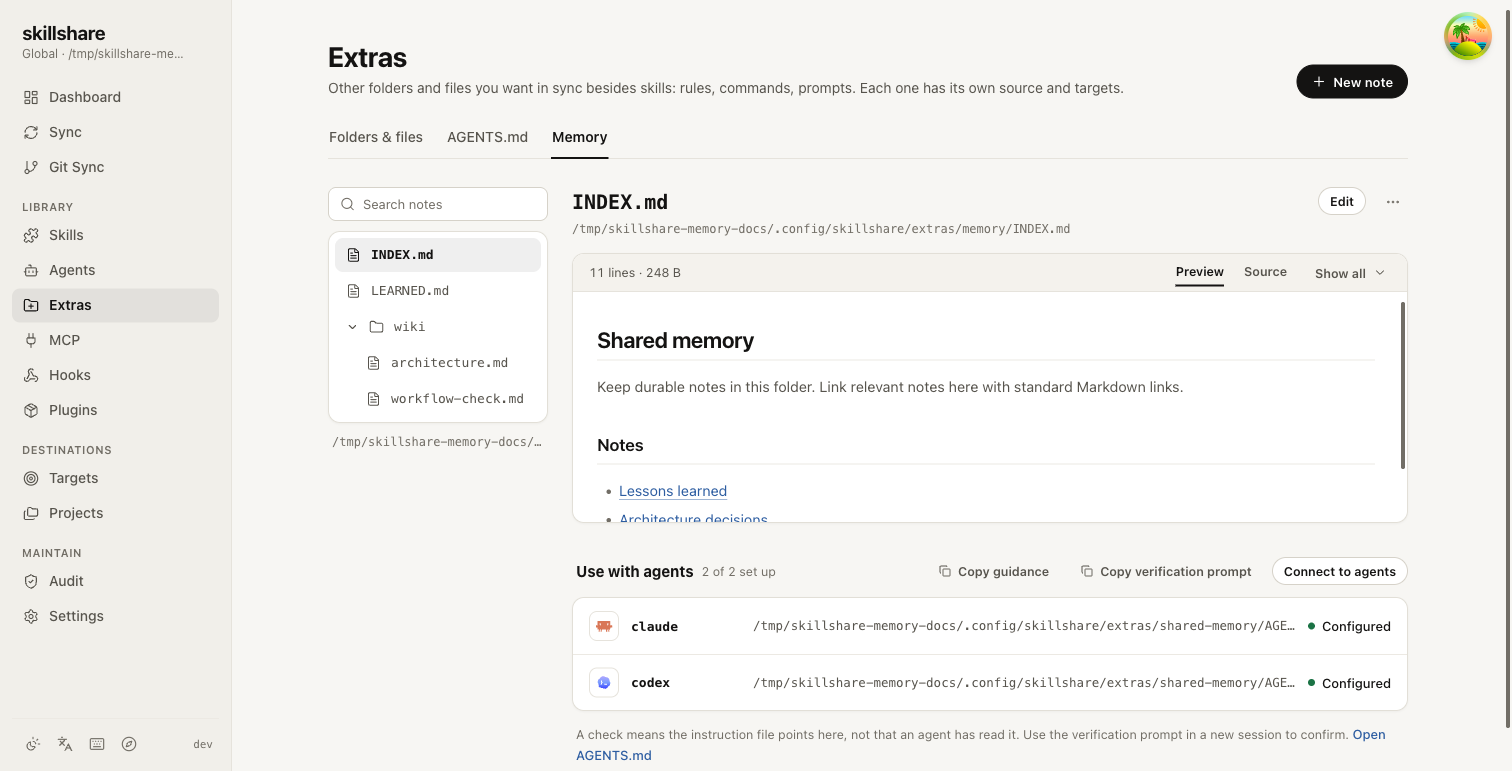
Configured means the current guidance is present in the tool's reading chain. It does not mean the agent has read it. Not configured, Outdated, and Needs attention describe the instruction files, not agent activity. An intact outdated block can be updated through another review; modified or malformed blocks are preserved for manual repair. Unsynced shared instructions must be synced first. Unreadable instruction files are skipped. If files change after review, review again before applying.
Use Open AGENTS.md to inspect or repair instructions. There is no new CLI connection command; the connection review is a dashboard workflow.
3. Add and index a note
Click New note and enter wiki/architecture.md in File name. Leave Link
from INDEX.md checked, then click Create. This checkbox is shown when
INDEX.md is readable and is checked by default.
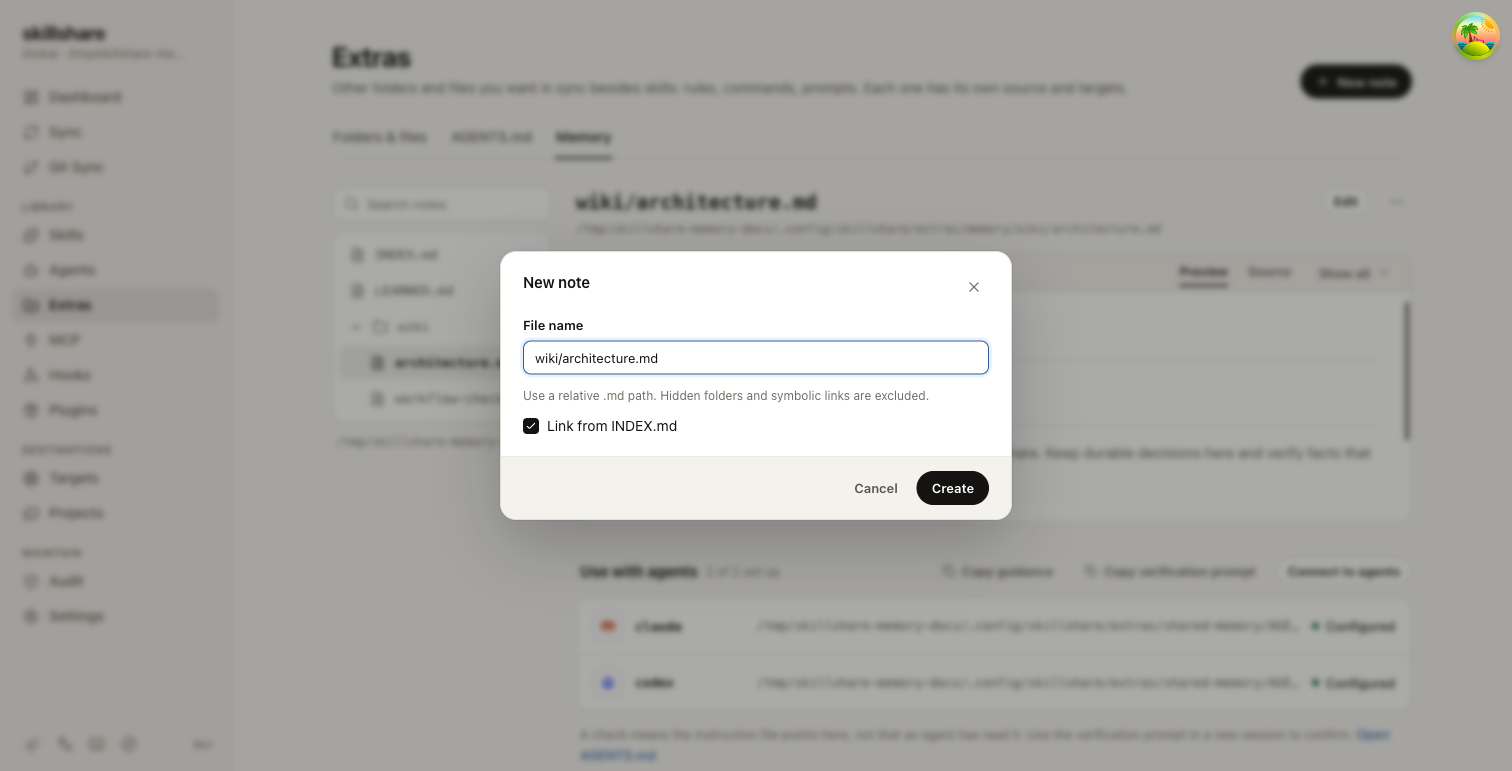
Skillshare creates missing subfolders and appends a relative Markdown link at the
end of INDEX.md. The index update checks its version and backs up changes. If
linking fails, the note remains created and a warning explains the partial
result. Select an unindexed note and click Add to INDEX to retry. You can also
edit index links yourself; keep the index short. Broken links produce a warning
and are not removed automatically.
Notes must be UTF-8 .md files no larger than 1 MiB. Unsupported notes stay listed
with an Unsupported file label; other valid notes remain usable. Hidden
files, hidden folders, and symbolic links inside the source are excluded.
Select your note, click Edit, add the following content, and Save:
# Architecture decisions

## Shared memory

Claude and Codex read the same Markdown notes from Skillshare.
Keep durable decisions here and verify facts that may have changed.

## Retrieval

Read INDEX.md first, then only the notes relevant to the current task.
Update notes when the user asks you to remember a decision.
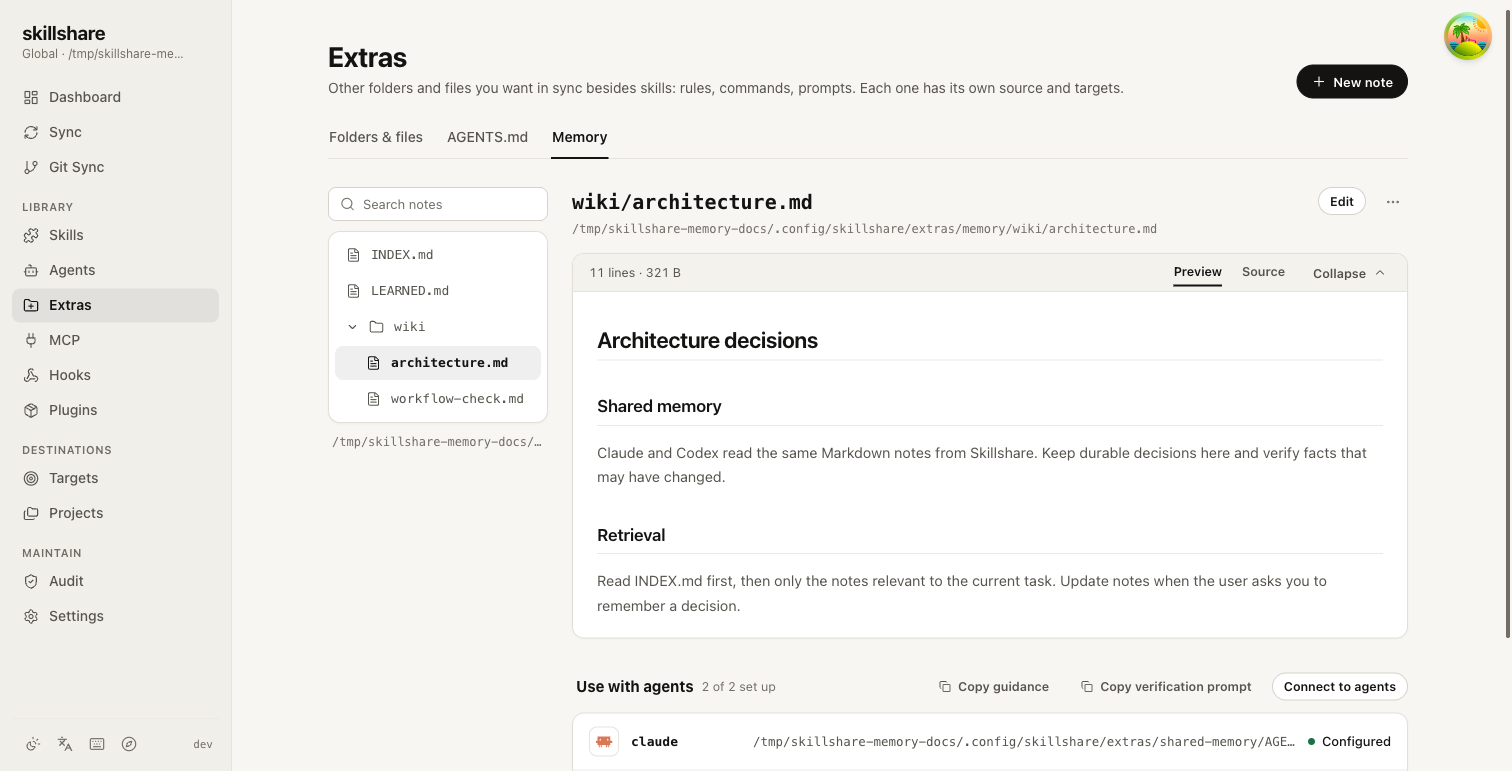
The tree supports nested folders and has the search box on top. The note pane switches between Preview and Source, and a long note opens collapsed until you click Show all. Next to the note's name are Edit and the More actions menu with Copy file path, History, Move or rename, and Delete note. Use with agents sits under the note. Relative links to existing notes open them in this viewer.
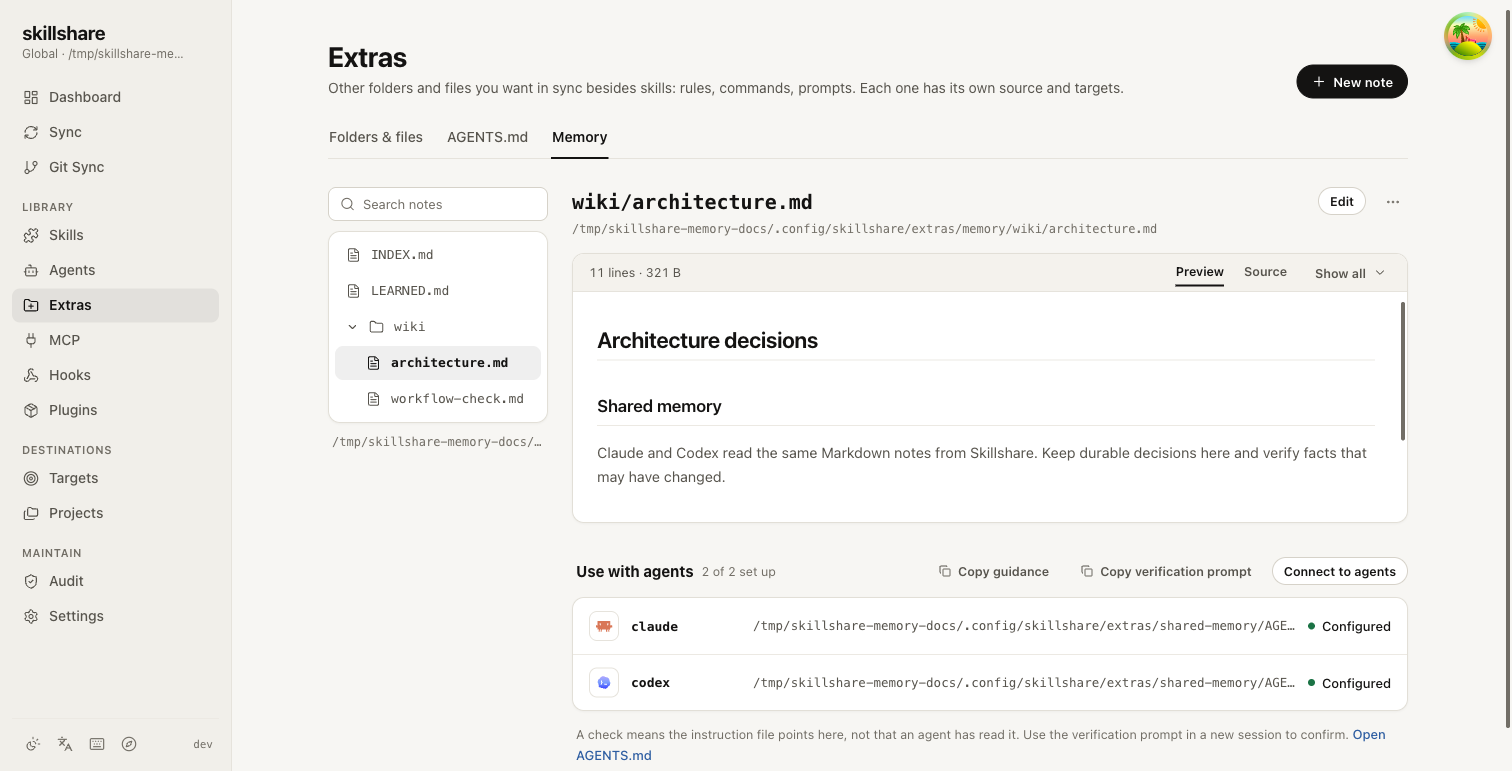
4. Find, edit, and recover
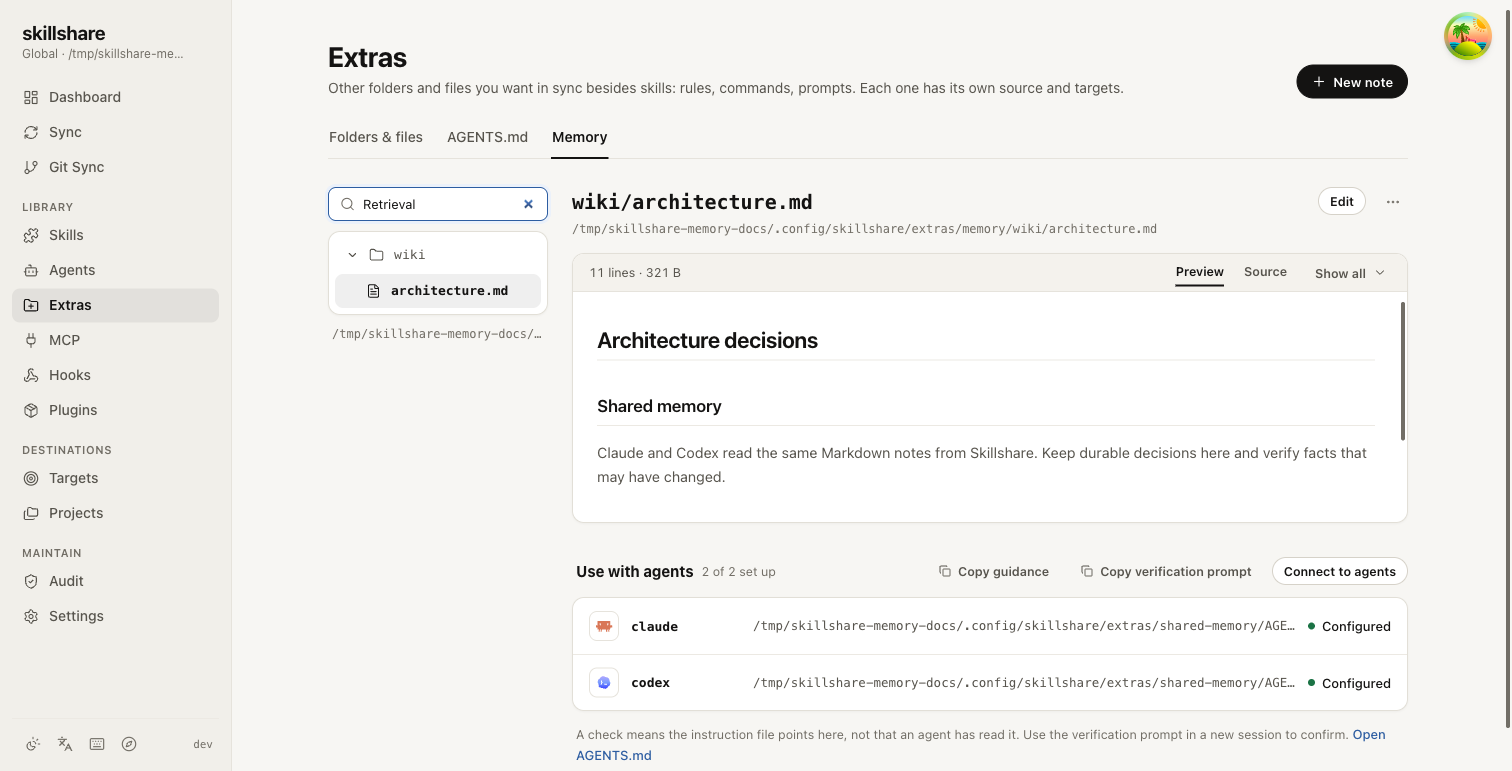
Type Retrieval into Search names and content. Search covers note paths and
contents, including subfolders, and ignores case. Clear it to show all notes.
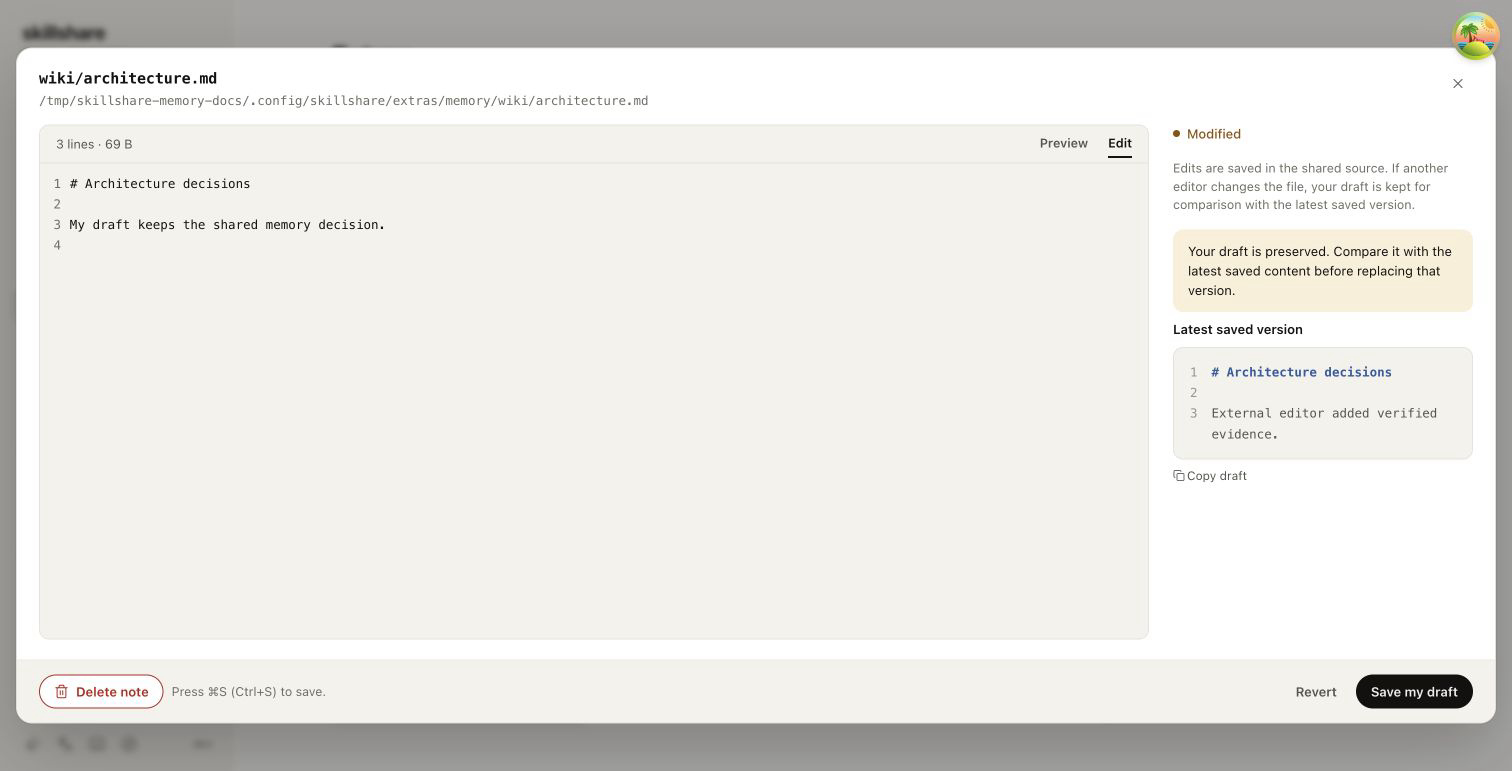
You can also use a text editor. Reload the dashboard to see external changes. If a note changes while you are editing, a stale save is rejected and your draft is preserved. The editor displays Latest saved version for comparison and offers Copy draft. After comparing or merging the content yourself, choose Save my draft and confirm replacement. The save uses the refreshed version and backs up the saved content; another intervening change causes another conflict.
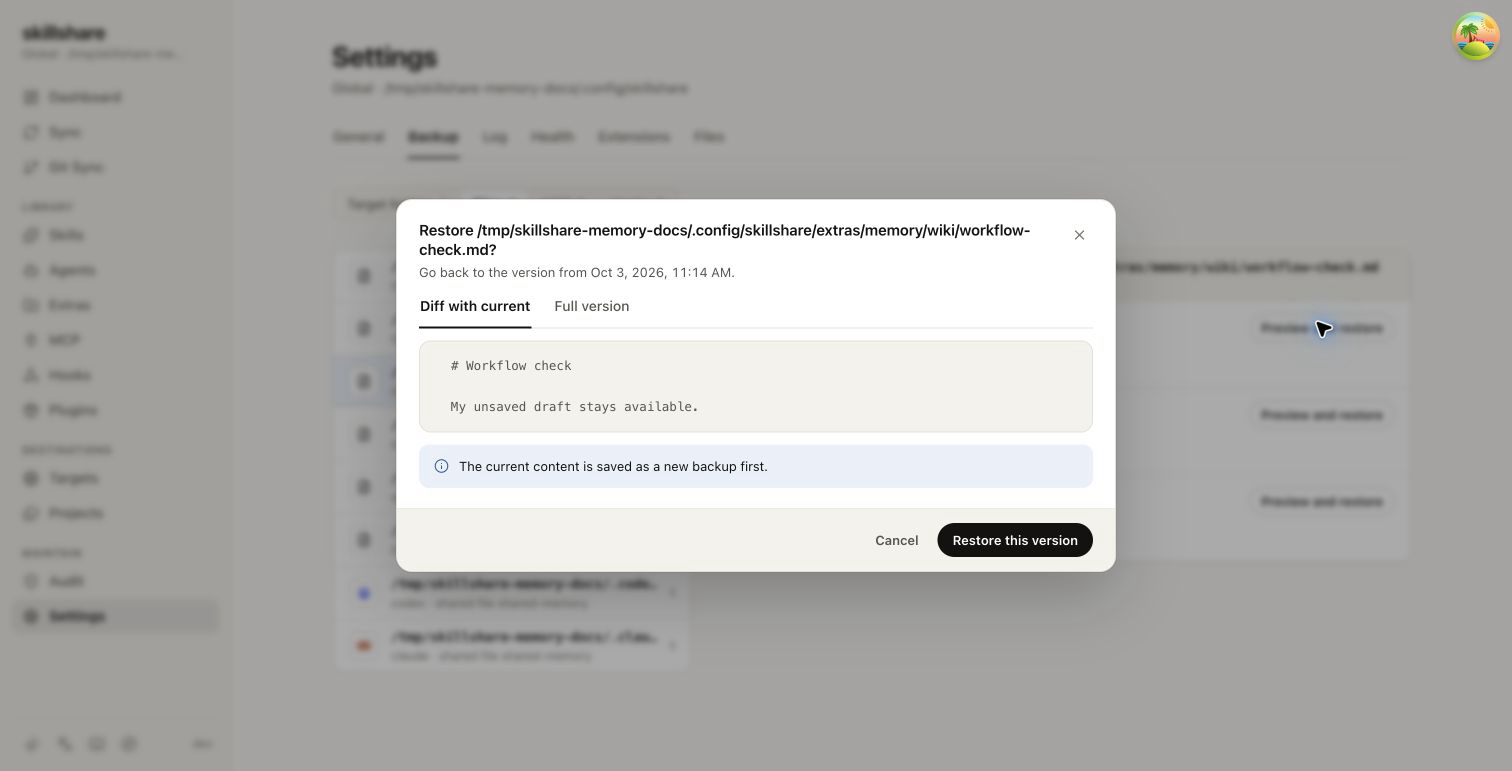
History opens Backup Files filtered to the note's absolute path. Preview and restore a saved version there, then reload Memory. The same page can restore a deleted note.
5. Verify in a fresh agent session
Add a temporary value such as memory-check: demo-7429 to your relevant note and
save it. Start a fresh session in a connected tool. Copy verification prompt
provides this prompt:
Hover over Copy verification prompt to preview its content before copying.
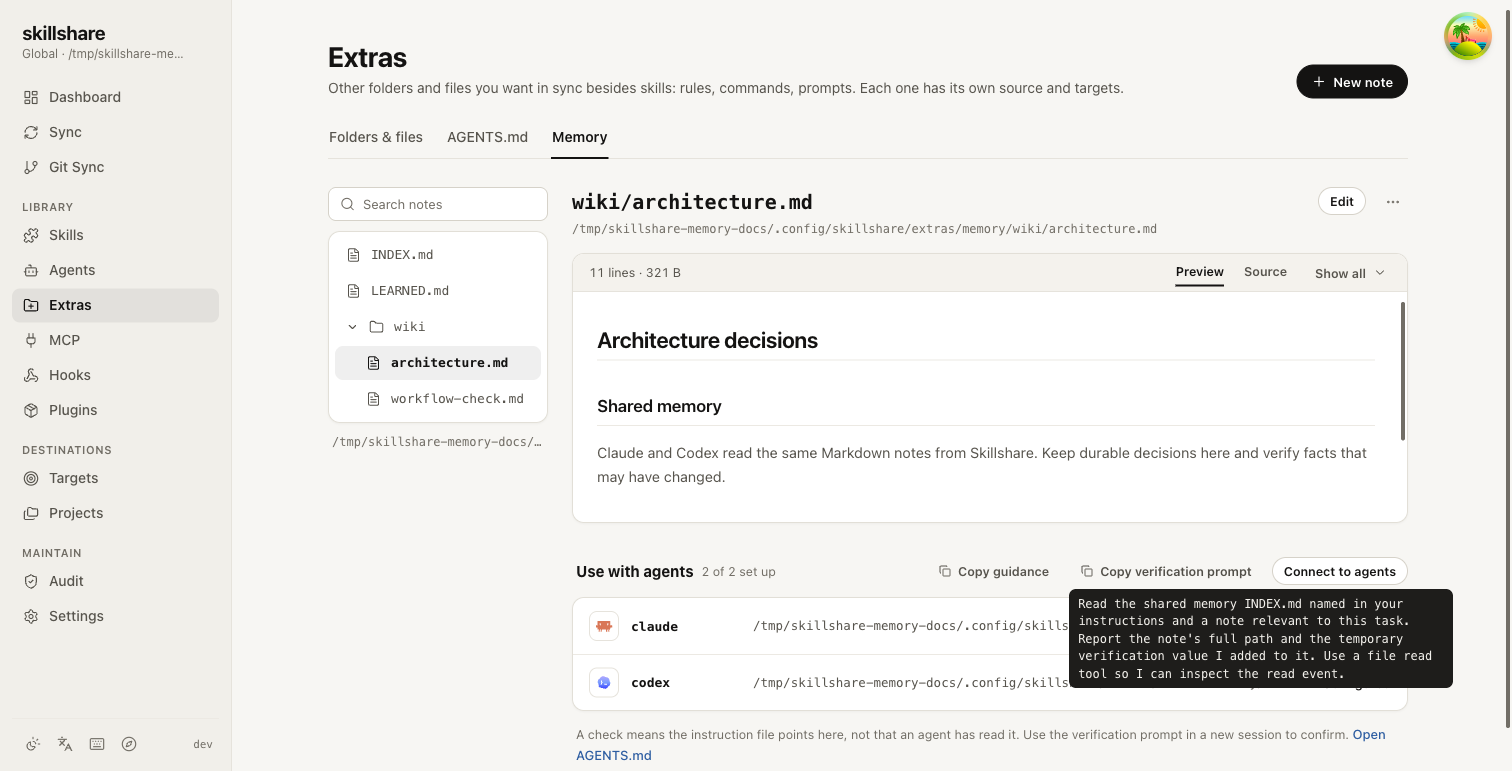
Read the shared memory INDEX.md named in your instructions and a note relevant to this task. Report the note's full path and the temporary verification value I added to it. Use a file read tool so I can inspect the read event.
Inspect the actual read tool event and check both the full path and temporary value. Repeat in another connected tool, then remove the value. This is manual verification: Skillshare has no guaranteed read telemetry. A claimed read or a Configured label alone is insufficient evidence.
To save a lesson, ask the agent to update LEARNED.md with its context,
conclusion, and evidence. Notes are user-owned; guidance asks agents to update
them only at your request. This feature does not enable native automatic memory,
automatic learning, or an Obsidian integration.
Project mode
Initialize the project's Skillshare configuration first, then run:
skillshare extras memory init -p
skillshare ui -p
The default source is .skillshare/extras/memory/, or
skillshare/extras/memory/ with visible configuration. Existing extras source
overrides apply. The same connection, index, editing, and recovery workflow is
available in project mode. Guidance for a source inside the repository uses a
path relative to the project root, even when the instruction file lives in a
subfolder. An override outside the project uses an absolute path. Regenerate and
review guidance after moving an absolute source or changing its location.
Advanced fallback: copy guidance yourself
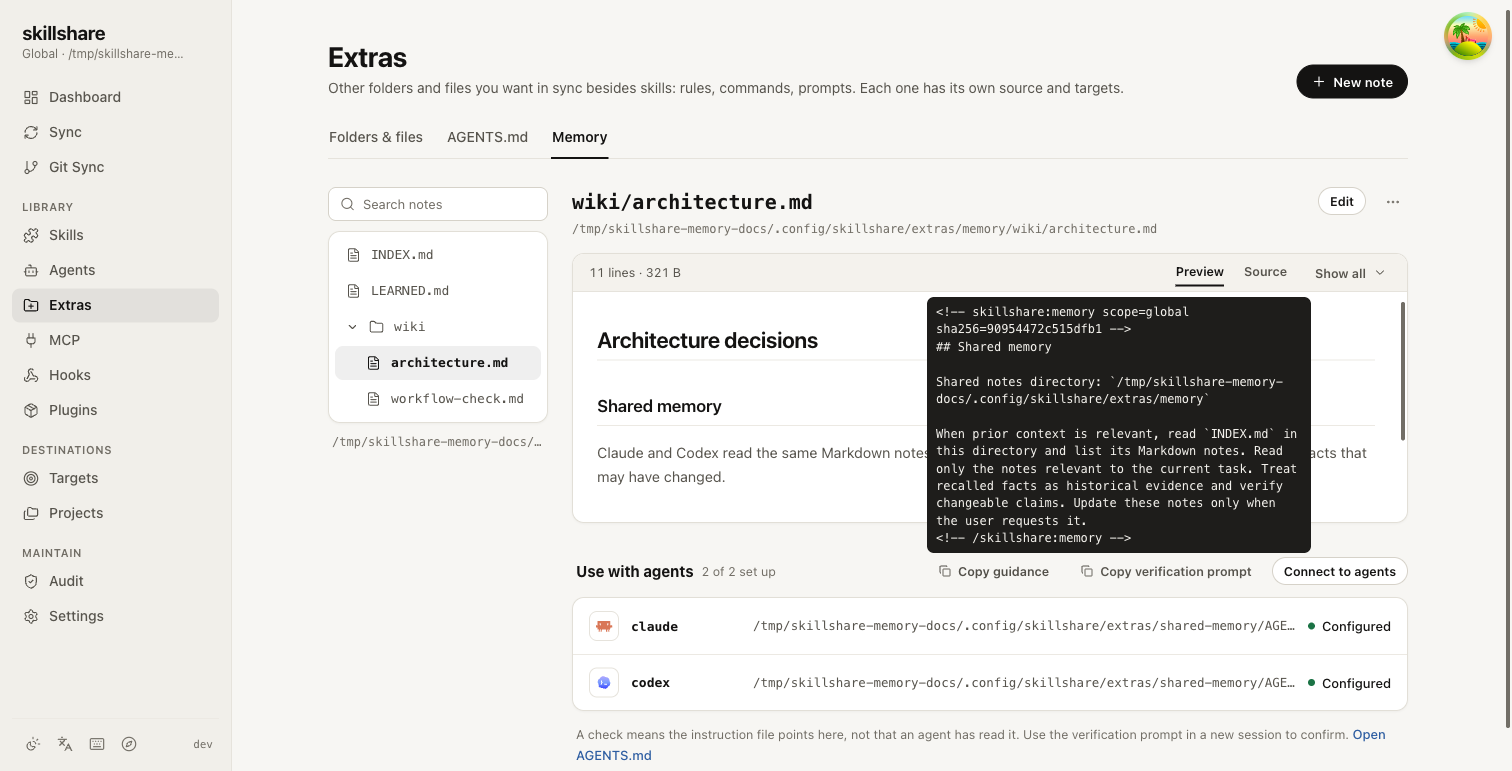
Hover over or focus Copy guidance to preview the generated block, then copy it into an instruction file your agent reads. Open AGENTS.md provides the existing instruction editor.
You can instead create shared instructions in Extras → AGENTS.md and connect them through that page's existing workflow. Review its connection modes and replacement warnings in Share one AGENTS.md across your tools.
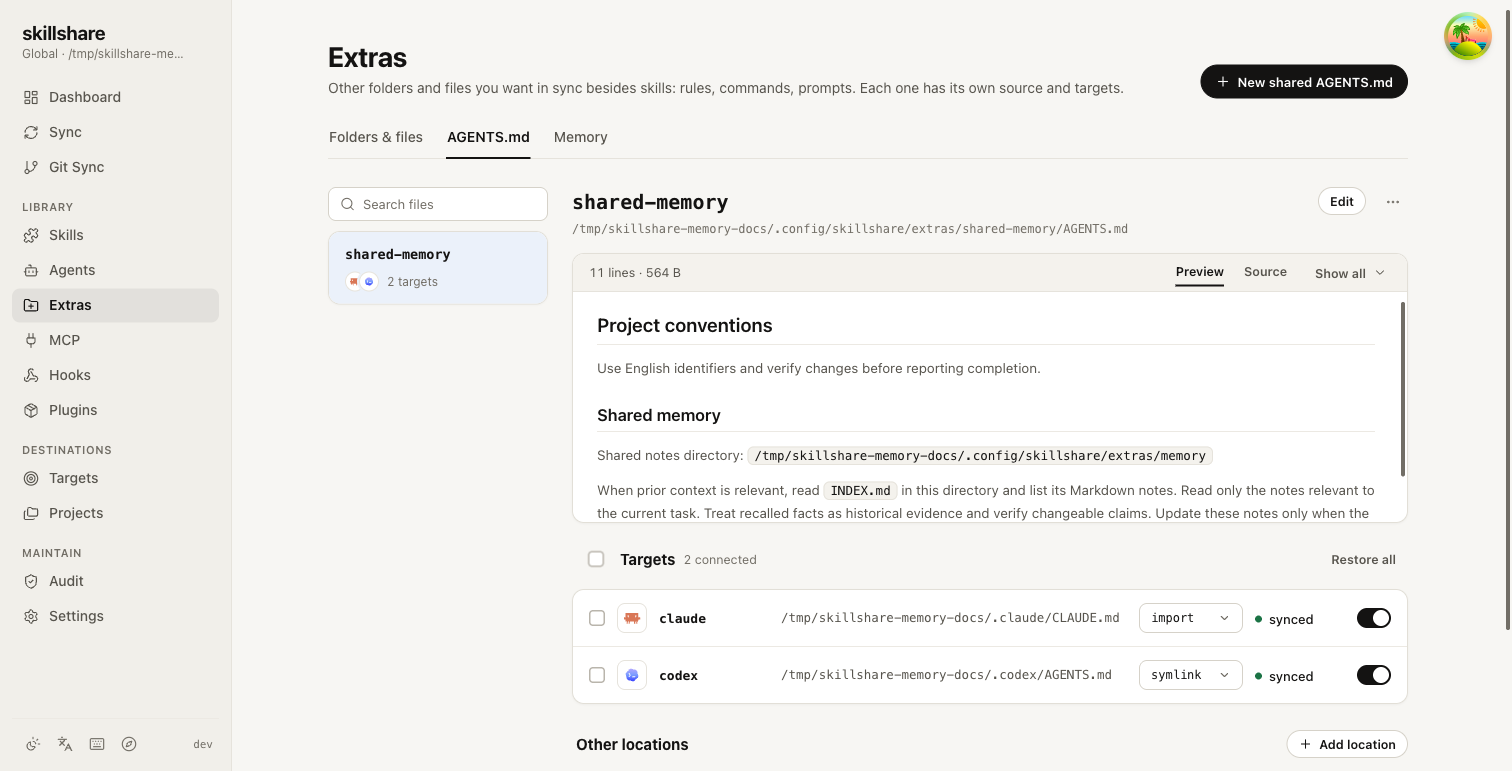
Keep the scope and hash markers intact. Manually changing the generated block's body marks it as modified; a later connection review will preserve it.
CLI alternative
skillshare extras memory init -g
printf '# Architecture decisions\n\nRead relevant notes on demand.\n' |
  skillshare extras memory write wiki/architecture.md --from - -g
skillshare extras memory list --search architecture -g
skillshare extras memory show wiki/architecture.md -g
skillshare extras memory instructions -g
The CLI prints reading guidance; paste it yourself. It does not connect tools or
add index links. Updating a note requires its current --version; see the
extras memory reference.
Move or rename a note
Select a note, open More actions, and click Move or rename. Enter a new relative .md path:
wiki/architecture.md → wiki/design.md renames it, while
wiki/architecture.md → projects/design.md moves it to another folder.
Missing folders are created automatically. Click Move to apply.
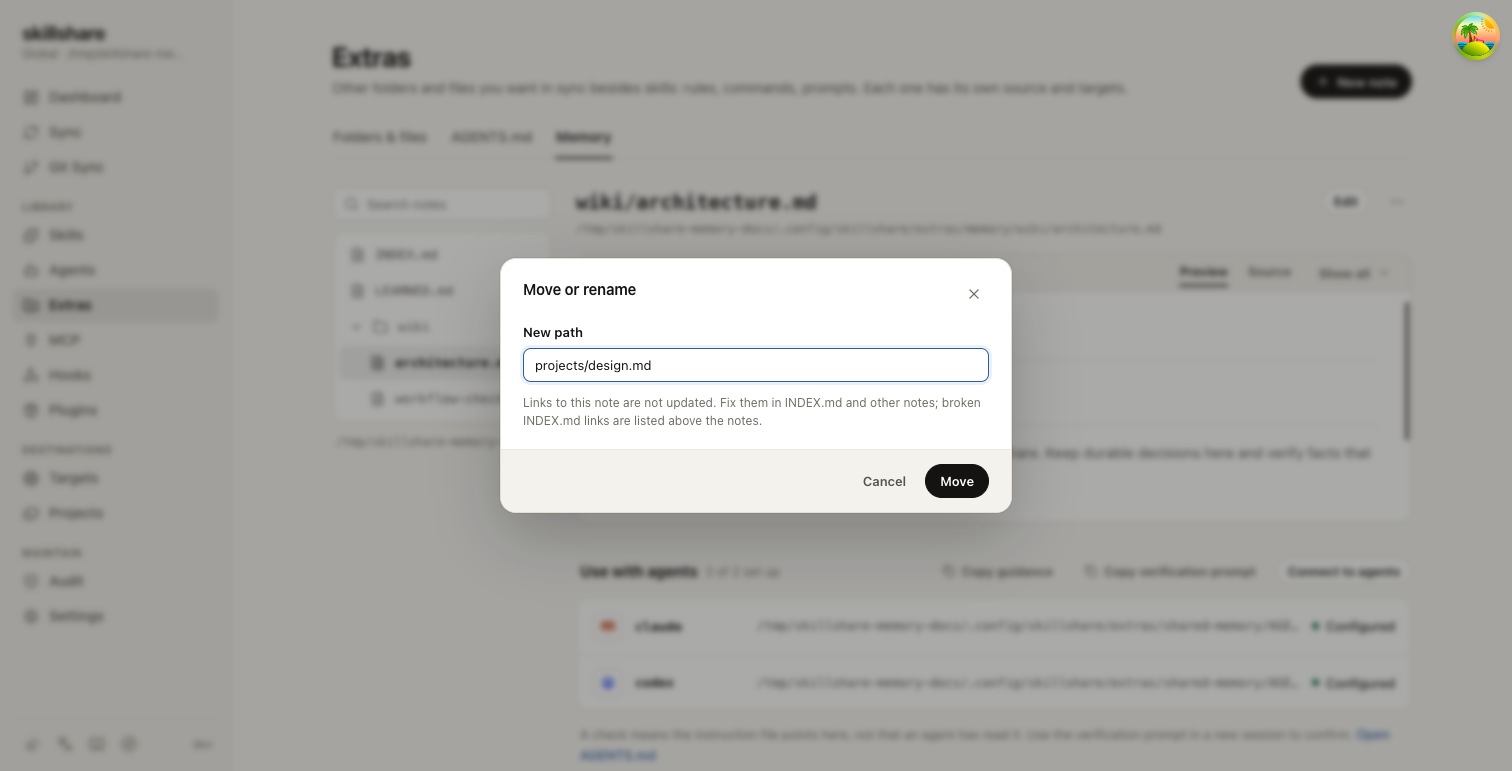
Content and permissions are preserved. An existing destination or a stale note version is rejected. The source is backed up before moving; use Restore in Backup Files to view history at the old path. Restoring there recreates the old note and leaves the moved note in place.
Markdown links are not updated automatically, including links inside the moved
note. Repair INDEX.md and other relative links yourself; broken index links
are shown above the browser. Keep INDEX.md at the source root because the
agent reading guidance points to it.
Delete a note
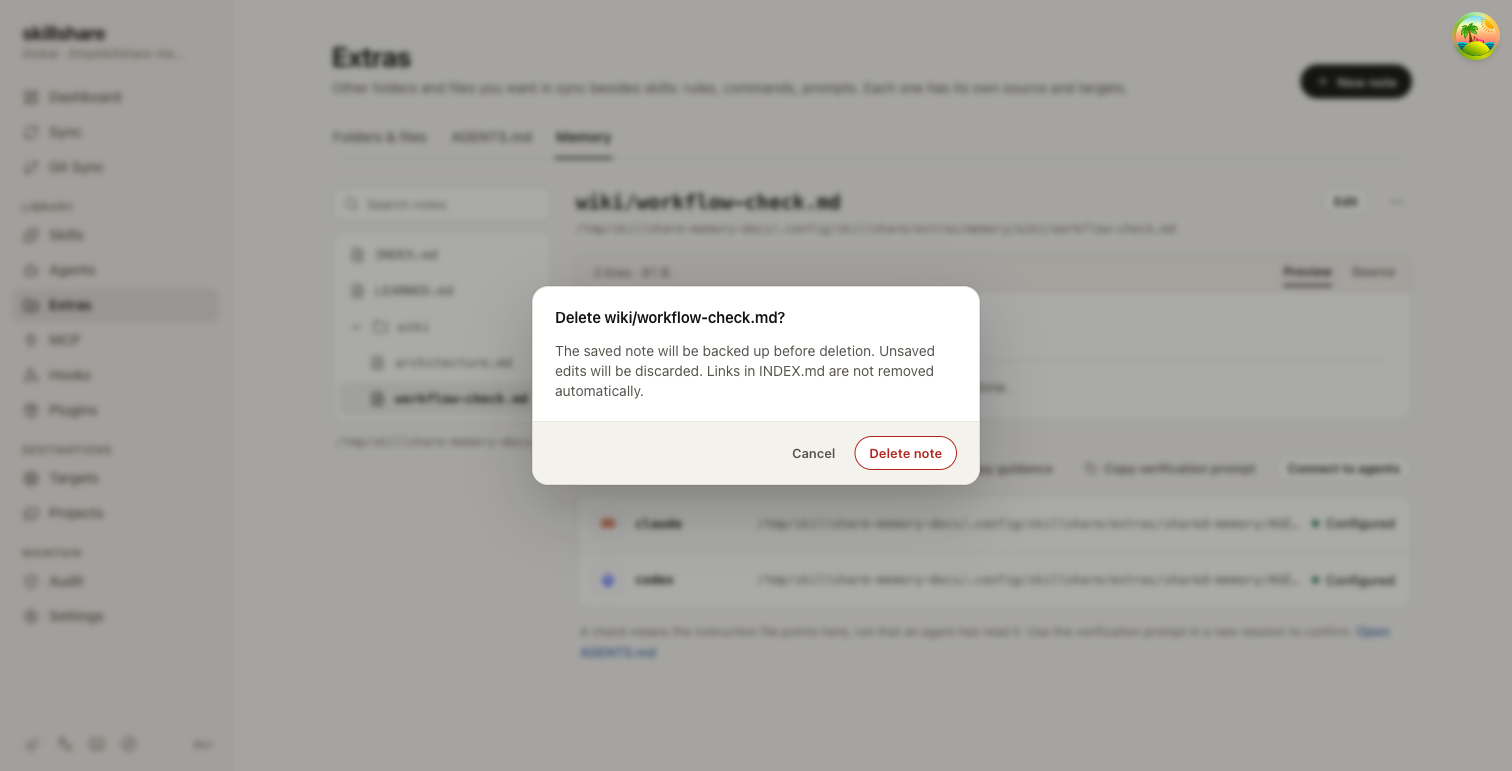
Choose Delete note from More actions or in the editor and confirm the filename. Unsaved
edits are discarded. Skillshare checks the saved version and backs it up before
deleting only that note; its folder and other notes remain. Update stale
INDEX.md links yourself. After deletion, Restore in Backup Files opens the filtered history.
The CLI also requires the version you just read:
version=$(skillshare extras memory show wiki/architecture.md --json -g | jq -r '.version')
skillshare extras memory delete wiki/architecture.md --version "$version" -g
Recover using backup files:
skillshare backup files show <absolute-note-path>, then
skillshare backup files restore <absolute-note-path> <id>.