Cross-Machine Sync
git을 사용해 여러 컴퓨터에서 Skill을 동기화합니다.
개요
첫 번째 머신 설정
대화형 (안내 프롬프트)
skillshare init --remote [email protected]:you/my-skills.git
비대화형 (프롬프트 없음)
# 원격에 이미 Skill이 있는 경우 (또는 새 Source로 시작)
skillshare init --remote [email protected]:you/my-skills.git --no-copy --all-targets --no-skill

# 기존 Claude Skill이 있는 첫 번째 머신: init 중에 가져오기
skillshare init --remote [email protected]:you/my-skills.git --copy-from claude --all-targets --no-skill
이 명령은:
- Source 디렉터리를 생성합니다
- 초기 커밋과 함께 git을 초기화합니다
- Remote를 추가합니다
- Target을 자동으로 감지하고 설정합니다
선택 사항 (설정 후 추가 AI CLI를 설치한 경우에만):
skillshare init --discover
그런 다음 Skill을 push하세요:
skillshare push
기존 설정에 Remote를 추가하세요:
skillshare init --remote [email protected]:you/my-skills.git
초기 설정 이후에도 동작합니다 — 단순히 Remote를 추가할 뿐입니다.
두 번째 머신 설정
skillshare init을 실행하고 Connect my existing skillshare repo를 선택한 뒤 저장소 URL을 붙여넣습니다:
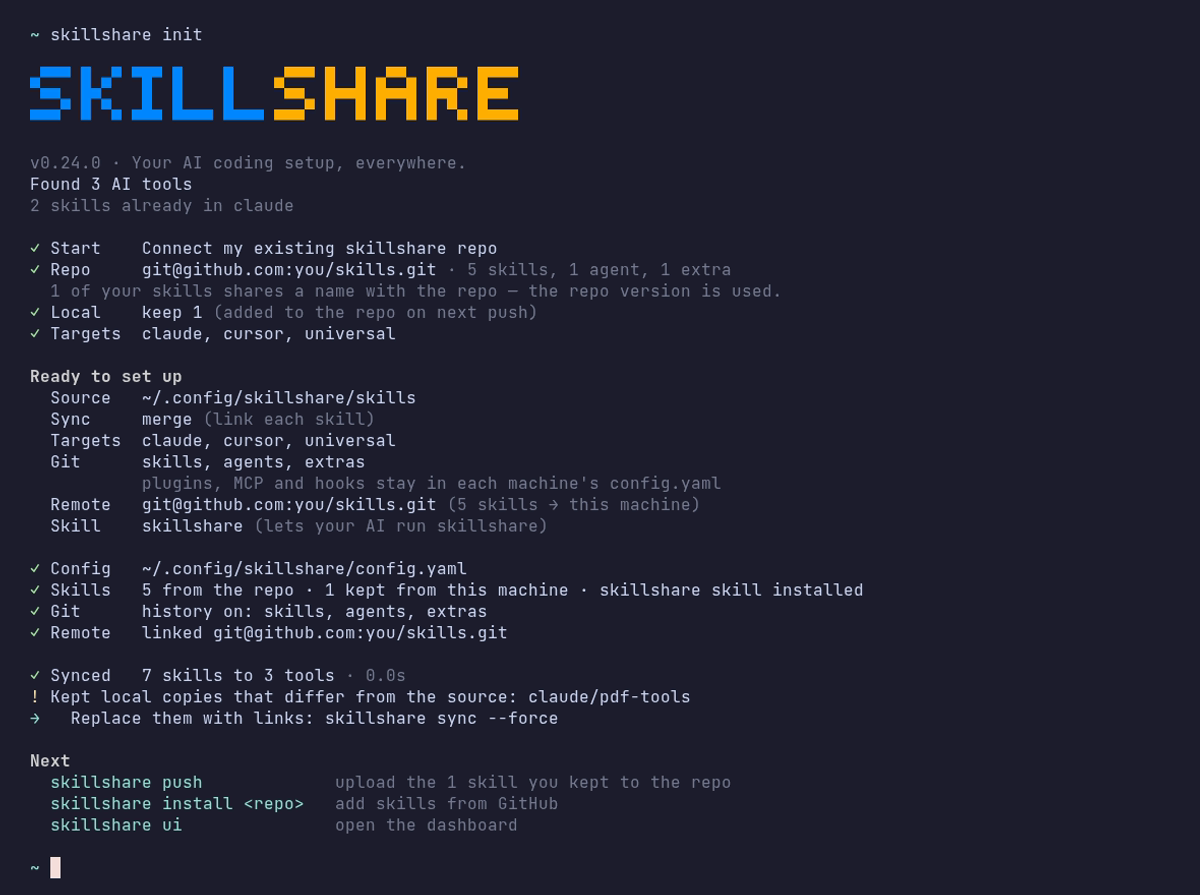
URL을 직접 전달할 수도 있습니다:
skillshare init --remote [email protected]:you/my-skills.git
Init은 아무것도 쓰지 않고 먼저 저장소를 확인한 뒤 pull합니다. 수동으로 git clone할 필요가 없습니다.
- 저장소를 임시 폴더에 clone해 Skill 수를 세고 구조를 판단합니다:
--git-root root로 push한 폴더 전체인지,skills/폴더 안의 Skill인지 - 이 머신에서 저장소와 이름이 같은 Skill은 저장소 버전을 사용합니다. 이 머신에만 있는 Skill은 유지되고 다음
skillshare push때 저장소에 추가됩니다 - 확인 후: source를 만들고 git을 초기화하고 Remote를 추가한 뒤 원격 브랜치로 재설정하고 추적을 설정합니다
- 감지된 로컬 Target을 설정하고 첫 sync를 제안합니다
수동 제어를 선호한다면:
# 직접 clone한 다음, 기존 Source로 init
git clone [email protected]:you/my-skills.git ~/.config/skillshare/skills
skillshare init --source ~/.config/skillshare/skills
skillshare sync
일상 워크플로
Machine A: 변경 후 push
# Skill 편집 (심볼릭 링크를 통해 변경 사항이 즉시 반영됩니다)
$EDITOR ~/.config/skillshare/skills/my-skill/SKILL.md

# 선택 사항: push 없이 로컬 체크포인트 생성
skillshare commit -m "Update my-skill"

# 공유할 준비가 되면 Remote에 push
skillshare push -m "Update my-skill"
Machine B: pull 후 sync
skillshare pull
이게 전부입니다. pull은 pull 이후 자동으로 sync를 실행합니다. git root scope에 포함된 것만 sync합니다. 기본값은 skills, agents / extras scope에서는 해당 리소스, git_root: root에서는 세 가지 모두입니다. Plugins, MCP 서버, hooks는 아래의 추가 단계가 필요합니다.
명령 하나로 양방향 처리
여러 머신에서 skill을 편집한다면 push와 pull 대신 다음을 실행하세요:
skillshare push --pull -m "Update my-skill"
변경 사항을 커밋하고, 다른 머신이 push한 내용을 병합한 뒤 push하고, target을 sync합니다. 충돌이 발생하면 아무것도 push되기 전에 중단됩니다. Push와 Pull 함께 하기를 참고하세요.
Plugins, MCP, Hooks
push와 pull은 git root 디렉터리 안의 파일만 버전 관리합니다. Plugins, hooks, MCP 서버는 config.yaml의 설정이며, config.yaml은 이 repository에 절대 포함되지 않습니다. 기본 skills scope에서는 repo 밖에 있고, root scope에서는 ignore됩니다. 각 머신은 자신만의 config.yaml과 targets, 경로를 유지합니다.
| 리소스 | 저장 위치 | push / pull로 이동 여부 |
|---|---|---|
| Skills | Skills source | 예 |
| Agents | Agents source | git_root: agents 또는 root일 때 |
| Extras | Extras source | git_root: extras 또는 root일 때 |
| MCP 서버 | config.yaml, 또는 sources.mcp가 지정한 파일 | 그 파일이 repository 안에 있을 때만 |
| Plugins | config.yaml의 plugins: | 아니요 |
| Hooks | config.yaml의 hooks: | 아니요 |
다른 머신에서 pull한 뒤 나머지는 직접 적용합니다:
skillshare pull
skillshare sync --all              # agents, extras, MCP, hooks 추가
skillshare sync plugins --no-tui   # plugins는 --all에 포함되지 않음
MCP 서버
서버 정의를 repository 안의 별도 파일에 둡니다. git_root: root에서는 repository가 config.yaml이 있는 디렉터리(~/.config/skillshare, Windows에서는 %AppData%\skillshare)이므로, 상대 경로의 sources.mcp는 commit되고 config.yaml은 로컬에 남습니다:
sources:
  mcp: ./mcp.yaml

mcp:
  targets: [claude, codex]
mcp.targets는 config.yaml에 남으므로 머신마다 받을 클라이언트를 따로 고를 수 있습니다. 모든 머신에서 sources.mcp를 설정하세요. 기존 서버를 config.yaml 밖으로 옮기려면 MCP를 별도 파일로 분리하기를, 기존 설정을 root scope로 전환하려면 git_root를 참고하세요.
Skillshare는 자격 증명을 값이 아닌 fromEnv 참조로 저장합니다. 각 머신에서 Agent가 읽을 수 있는 곳에 해당 환경 변수를 설정하세요.
Plugins
공유 설정의 plugins: 섹션에 version 2 소스, ref, 대상 선택을 저장할 수 있습니다. StateDir는 기기마다 따로 유지하세요. 설정을 별도로 관리한다면 Plugins → Share에서 add 명령을 복사할 수 있습니다.
새 기기에서 skillshare plugin sync로 소스를 검토하고 로컬 snapshot 경로에 설치하세요. 검토와 commit 고정은 기기별입니다. 브랜치 ref는 설치나 업데이트 시 해석되므로 비대화형 sync가 다른 기기에서 검토한 것보다 새 commit을 사용할 수 있습니다. 같은 버전이 필요하면 source_ref에 commit SHA를 지정하세요. 로컬 소스 경로는 각 기기에 존재해야 합니다.
native-only 선언에는 이 기기에서 가져오기 필요가 표시되며 sync는 건너뜁니다. 각 기기의 네이티브 클라이언트에서 설치한 뒤 skillshare plugin import LOCAL-ID --from TARGET --name NAME을 실행하세요. 기존 소스 선언으로 가져오면 로컬 기록만 저장하며, 다른 기기의 소스 설정과 설치는 유지됩니다.
첫 v2 편집 전에 모든 writer를 업데이트하고, 공유 YAML이 레거시일 때 각 기기에서 skillshare plugin list를 실행하세요. 로컬 마이그레이션 정보를 저장합니다. 플러그인 상태와 마이그레이션을 참고하세요.
sync는 누락된 plugin 설치, 변경된 ref 반영, 로컬 정리 재시도를 수행합니다. 같은 ref의 새 릴리스는 skillshare plugin check와 skillshare plugin update로 확인하고 업데이트하세요.
Hooks
Hooks에는 별도 파일이 없습니다. config.yaml의 hooks: 섹션을 다른 머신에 복사한 뒤 skillshare sync hooks를 실행하세요.
각 머신에 남는 것
- plugin을 설치하는 native CLI(
claude,codex등)는 Skillshare가 실행되는 곳에 설치되어 있고PATH에 있어야 합니다. 예약 작업의PATH는 터미널보다 짧은 경우가 많습니다. Codex는 Codex 데스크톱 app과 Homebrew 폴더에서도 찾습니다. 다른 위치에 있는 머신에서는SKILLSHARE_CODEX_CLI를 설정하세요. - 로그인, OAuth 토큰, native 신뢰 확인, 활성화/비활성화 상태는 각 Agent에 남습니다.
- MCP 서버가 참조하는 환경 변수의 값.
명령어
Commit
push 없이 로컬 체크포인트를 생성합니다:
skillshare commit                  # 기본 메시지
skillshare commit -m "Add pdf"     # 사용자 지정 메시지
skillshare commit --dry-run        # 미리보기
실제로 일어나는 일:
git add -A
git commit -m "Add pdf"
commit은 Remote를 필요로 하지 않으며 절대 push하지 않습니다.
Push
로컬 변경 사항을 커밋하고 push합니다:
skillshare push                  # 자동 생성된 메시지
skillshare push -m "Add pdf"     # 사용자 지정 메시지
실제로 일어나는 일:
git add -A
git commit -m "Add pdf"
git push          # 첫 push 시 upstream을 자동 설정합니다
Pull
Remote 변경 사항을 pull하고 sync합니다:
skillshare pull
실제로 일어나는 일:
git pull           # 두 머신 모두 커밋했다면 병합; 첫 pull 시 fetch 후 병합 또는 reset
skillshare sync
충돌 처리
Pull 실패 (로컬에 커밋되지 않은 변경 사항)
로컬 변경 사항을 유지하고 싶지만 아직 push할 준비가 안 됐다면, 먼저 로컬에 커밋하세요:
skillshare commit -m "Save local changes"
skillshare pull
Push 실패 (Remote가 앞서 있음)
$ skillshare push
Push failed
  Remote may have newer changes
  Run: skillshare pull
  Then: skillshare push
해결 방법:
skillshare pull
skillshare push
로컬에 커밋되지 않은 변경 사항으로 Pull이 계속 실패하는 경우
$ skillshare pull
Local changes detected
  Run: skillshare push
  Or:  cd ~/.config/skillshare/skills && git stash
해결 방법:
# 옵션 1: 먼저 로컬에 커밋
skillshare commit -m "Local changes"
skillshare pull

# 옵션 2: 먼저 변경 사항을 push
skillshare push -m "Local changes"
skillshare pull

# 옵션 3: 변경 사항을 임시로 stash
cd ~/.config/skillshare/skills
git stash
skillshare pull
git stash pop
병합 충돌
두 머신 모두 커밋한 경우 pull이 이를 병합합니다. .metadata.json의 충돌은 자동으로 해결됩니다. 그 외의 파일에서 충돌이 발생하면 pull이 중단되고, 병합이 되돌려지며, 해당 파일이 표시됩니다:
$ skillshare pull
pull stopped: this machine and the remote both changed my-skill/SKILL.md; the merge was undone, resolve it with git in ~/.config/skillshare/skills
해결 방법:
cd ~/.config/skillshare/skills
git pull --no-rebase          # 병합을 다시 실행하고 충돌을 남겨 둠
# 충돌한 파일 편집
git add .
git commit --no-edit
skillshare push
skillshare sync
상태 확인
skillshare status
다음을 표시합니다:
- Git 상태 (clean, ahead, behind)
- Remote 설정
- Sync 상태
비공개 저장소
비공개 저장소에는 SSH URL을 사용하세요:
skillshare init --remote [email protected]:you/private-skills.git
팁
SSH 키 사용
비밀번호 프롬프트를 피하려면 SSH 키를 설정하세요:
ssh-keygen -t ed25519 -C "[email protected]"
# 공개 키를 GitHub에 추가
Dotfiles를 위한 이식 가능한 경로
dotfiles를 통해 config.yaml을 공유한다면, 경로를 /home/alice/... 대신 ~/... 형태로 유지하도록 preserve_tilde_on_save를 활성화하세요:
preserve_tilde_on_save: true
이렇게 하면 동일한 config가 서로 다른 사용자명이나 OS별 홈 접두사를 가진 머신에서 사용될 때 발생하는 지저분한 diff를 방지할 수 있습니다. Configuration — preserve_tilde_on_save를 참고하세요.
여러 Remote
백업용 Remote를 추가하세요:
cd ~/.config/skillshare/skills
git remote add backup [email protected]:you/skills-backup.git
git push backup main
셸 시작 시 Sync
~/.bashrc 또는 ~/.zshrc에 추가하세요:
# 터미널이 열릴 때 skillshare를 sync (Remote가 설정된 경우)
skillshare pull 2>/dev/null
대안: Config에서 설치하기
git remote를 설정하고 싶지 않다면, config.yaml이 이식 가능한 Skill 매니페스트 역할을 합니다. install / uninstall을 실행할 때마다 skills: 섹션이 자동으로 갱신되며, skillshare install (인자 없음)을 실행하면 나열된 모든 항목을 다시 설치합니다:
# Machine A — config.yaml이 설치한 항목을 기록합니다
skillshare install anthropics/skills -s pdf
# config.yaml에 이제 다음이 포함됩니다: skills: [{name: pdf, source: "..."}]

# Machine B — config.yaml을 복사한 다음:
skillshare install      # 나열된 모든 Skill을 설치합니다
skillshare sync
어떤 방법을 사용해야 할까요
push / pull | install (인자 없음) | |
|---|---|---|
| 동기화되는 것 | 실제 Skill 파일 (전체 내용) | Source URL만 — 설치 시 다시 다운로드 |
| 로컬/수동 작성 Skill | 포함됨 | 포함되지 않음 (Source URL 없음) |
| 필요한 설정 | Source 디렉터리의 git remote | config.yaml만 있으면 됨 |
| Project mode | Global만 가능 | -p(.skillshare/config.yaml)와 함께 동작 |
| 유지 관리 | 변경 후 수동 push | install/uninstall 시 자동 조정 |
권장 사항: 개인용 Cross-Machine Sync에는 push/pull을 사용하세요. 팀 온보딩과 Project 설정에는 config에서의 install을 사용하세요.
참고 자료
- push — Remote에 push
- pull — Remote에서 pull
- install — Config에서 설치
- Organization-Wide Skills — 팀 공유
- init —
--remote로 init