Running Multiple Claude Code Accounts? Here's How to Keep Them in Sync

You have a personal Claude Code subscription and a work one. Or maybe a client gave you access to their team account. Either way, you now have two (or three) separate Claude Code environments — and they're already drifting apart.
Here's how to set up multiple accounts properly, and how to stop manually copying skills, rules, and hooks between them.
Why Multiple Accounts?
A few common scenarios:
- Personal + Work — your company pays for a team plan, but you also have your own subscription for side projects
- Personal + Client — a client added you to their org, but you want to keep your own setup separate
- Multiple orgs — you consult for several companies, each with their own Claude Code team
The problem is always the same: you've built up a collection of skills, rules, hooks, and agents in one account, and now you need them in the others too.
Step 1: Set Up Multiple Accounts
Claude Code stores everything in ~/.claude/ by default. To add a second account, create a separate directory and point Claude at it with CLAUDE_CONFIG_DIR.
# Create a new config directory for your work account
mkdir -p ~/.claude-work
Then add aliases to your ~/.zshrc (or ~/.bashrc):
# Personal account (default)
alias claude="claude"

# Work account
alias claude-work="CLAUDE_CONFIG_DIR=~/.claude-work claude"
Reload and log in:
source ~/.zshrc
claude-work   # follow the login flow for your work account
That's it. claude uses your personal account, claude-work uses your work account. Each has its own API key, conversation history, and settings.
Need more accounts? Same pattern:
alias claude-client="CLAUDE_CONFIG_DIR=~/.claude-client claude"
Step 2: The Config Drift Problem
After a week, here's what happens:
~/.claude/
├── skills/          ← 12 skills (you just added 2 new ones)
├── rules/           ← 5 rule files
├── hooks/           ← 3 hooks
└── agents/          ← 2 agent definitions

~/.claude-work/
├── skills/          ← 10 skills (missing the 2 new ones)
├── rules/           ← 3 rule files (missing 2)
├── hooks/           ← 1 hook (you forgot to copy the other 2)
└── agents/          ← 0 (you never set these up here)
You wrote a great debugging skill last Tuesday — but only in your personal account. Your work account still doesn't have it. Your carefully tuned rules about commit message style? Only in one place.
You could cp -r files around, but:
- You'll forget
- You'll overwrite something
- Files get out of sync silently
- Some accounts need different skills than others
Step 3: Sync Skills Automatically
This is where skillshare comes in. Install it:
# macOS / Linux
curl -fsSL https://raw.githubusercontent.com/runkids/skillshare/main/install.sh | sh

# or via Homebrew
brew install skillshare

# Windows (PowerShell)
irm https://raw.githubusercontent.com/runkids/skillshare/main/install.ps1 | iex
Initialize and add your accounts as targets:
skillshare init

# Add each account's skill directory
skillshare target add claude ~/.claude/skills
skillshare target add claude-work ~/.claude-work/skills
Your config (~/.config/skillshare/config.yaml) now looks like:
targets:
  claude:
    skills:
      path: ~/.claude/skills
  claude-work:
    skills:
      path: ~/.claude-work/skills
Collect your existing skills into the source, then sync:
# Pull existing skills from your primary account into skillshare
skillshare collect claude

# Sync to all accounts
skillshare sync
Done. Both accounts now have the same skills.
Filtering: Different Skills for Different Accounts
Not every skill belongs everywhere. Your personal side-project-ideas skill probably shouldn't show up at work:
targets:
  claude:
    skills:
      path: ~/.claude/skills
  claude-work:
    skills:
      path: ~/.claude-work/skills
      exclude:
        - "personal-*"
  claude-client:
    skills:
      path: ~/.claude-client/skills
      include:
        - "coding-*"
        - "commit"
Step 4: Sync Rules, Hooks, and Agents
Skills are only part of the picture. You also want your rules (coding standards, locale preferences), hooks (auto-format on save, test runners), and agents synced across accounts.
skillshare's extras feature handles this — it syncs any directory, not just skills.
# Sync rules across accounts
skillshare extras init claude-rules \
  --source ~/.claude/rules \
  --target ~/.claude-work/rules

# Sync hooks
skillshare extras init claude-hooks \
  --source ~/.claude/hooks \
  --target ~/.claude-work/hooks

# Sync agents (use --flatten because Claude discovers agents at top level only)
skillshare extras init claude-agents \
  --source ~/.claude/agents \
  --target ~/.claude-work/agents \
  --flatten
Or put it all in the config:
extras:
  - name: claude-rules
    source: ~/.claude/rules
    targets:
      - path: ~/.claude-work/rules
        mode: merge
      - path: ~/.claude-client/rules
        mode: merge

  - name: claude-hooks
    source: ~/.claude/hooks
    targets:
      - path: ~/.claude-work/hooks
        mode: merge

  - name: claude-agents
    source: ~/.claude/agents
    targets:
      - path: ~/.claude-work/agents
        mode: merge
        flatten: true
Why merge mode? It creates per-file symlinks from target to source, so account-specific files (like settings.json or settings.local.json) are left untouched. Your shared config syncs; your account-specific config stays separate.
Now sync everything:
skillshare sync --all # skills + extras in one command
The Daily Workflow
Once set up, keeping accounts in sync takes three commands:
skillshare check        # any upstream skill updates?
skillshare update --all # pull latest versions
skillshare sync --all   # push to all accounts
Write a new skill in your personal account → skillshare sync → it's everywhere.
Full Config Reference
Here's a complete three-account setup:
# ~/.config/skillshare/config.yaml
targets:
  claude:
    skills:
      path: ~/.claude/skills
  claude-work:
    skills:
      path: ~/.claude-work/skills
      exclude:
        - "personal-*"
  claude-client:
    skills:
      path: ~/.claude-client/skills
      include:
        - "coding-*"
        - "commit"

extras:
  - name: claude-rules
    source: ~/.claude/rules
    targets:
      - path: ~/.claude-work/rules
        mode: merge
      - path: ~/.claude-client/rules
        mode: merge

  - name: claude-hooks
    source: ~/.claude/hooks
    targets:
      - path: ~/.claude-work/hooks
        mode: merge

  - name: claude-agents
    source: ~/.claude/agents
    targets:
      - path: ~/.claude-work/agents
        mode: merge
        flatten: true
Bonus: Manage Everything from the Web UI
Prefer a visual interface over YAML? Over half of skillshare users manage their setup through the built-in web dashboard instead of editing config files by hand.
skillshare ui
This opens a dashboard at localhost:19420 where you can:
- View and manage all skills, targets, and extras
- Install new skills from GitHub with one click
- Run sync, audit, and check operations visually
- Edit target include/exclude filters without touching YAML
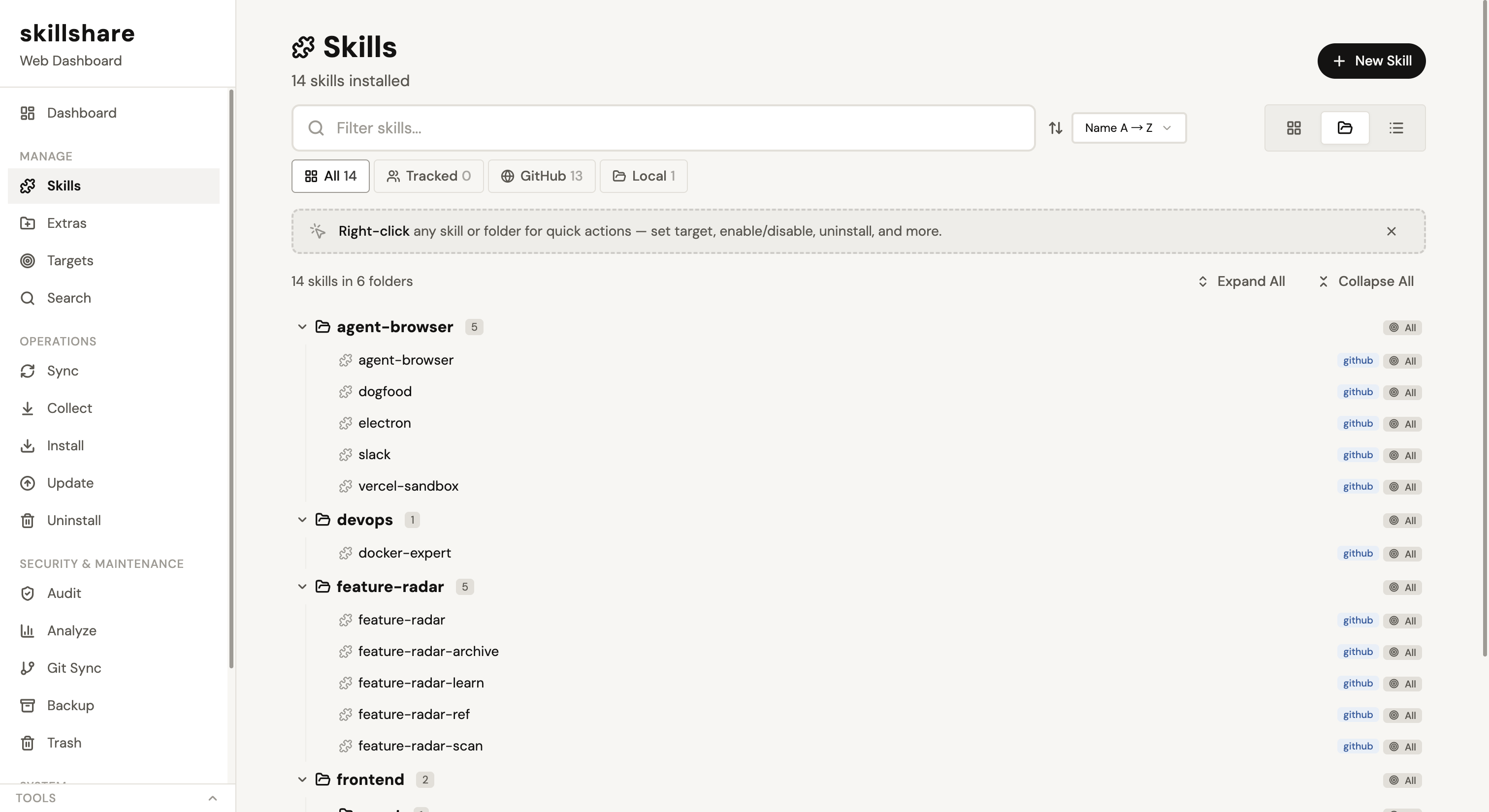
Everything you can do in the CLI, you can do in the UI — including setting up the multi-account extras config described above.
Quick Tips
- Pick one primary account as the source of truth. Edit skills, rules, and hooks there; sync to the rest.
- Preview before syncing —
skillshare sync --all --dry-runshows what will change. - Flatten agents — Claude Code only discovers agents at the top level, so always use
flatten: truefor agent directories. - Backup first —
skillshare backupsnapshots your current state before changes.
Get Started
curl -fsSL https://raw.githubusercontent.com/runkids/skillshare/main/install.sh | sh
skillshare init