First Sync
A complete first-time setup, in order. Roughly five minutes from install to a working sync. Two variations — restoring on another machine, and running unattended on a headless box — are documented at the end of this page.
Prerequisites
- macOS, Linux, or Windows
- At least one AI CLI installed (Claude Code, Cursor, Codex, etc.)
1. Install the CLI
Homebrew (macOS / Linux):
brew install skillshare
Homebrew releases can lag behind by a few days. For the latest, use the install script.
Install script (macOS / Linux):
curl -fsSL https://raw.githubusercontent.com/runkids/skillshare/main/install.sh | sh
Windows (PowerShell):
irm https://raw.githubusercontent.com/runkids/skillshare/main/install.ps1 | iex
skillshare upgrade detects how you installed (Homebrew, script, manual) and updates the CLI in place.
2. Initialize
skillshare init
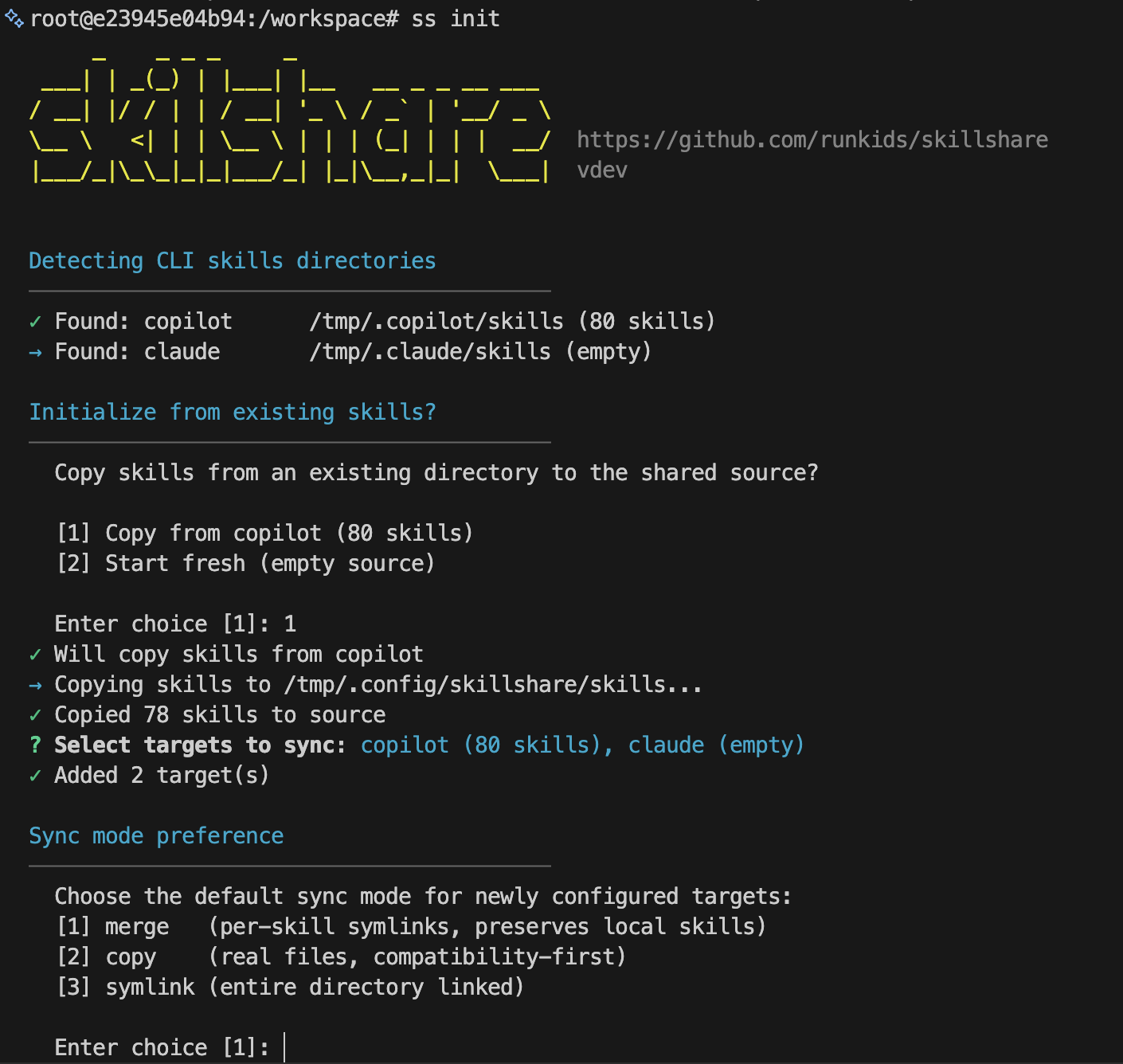
init walks you through four choices:
- Source directory — defaults to
~/.config/skillshare/skills/. Press Enter to accept. - Git remote — paste the URL of your personal skills repo (e.g.
[email protected]:you/skills.git). If you don't have one yet, create an empty repo on GitHub first; you can also skip and add a remote later. - Targets — skillshare detects installed AI CLIs and lists them. Confirm, or deselect any you don't want.
- Built-in skill — optional. Adds a
/skillsharecommand so your AI CLI can invoke skillshare directly.
Choosing a sync mode
init accepts --mode <merge|copy|symlink> to set the default for newly-added targets:
merge(default) — per-skill symlinks; pre-existing target-local skills are preservedsymlink— the whole target directory becomes one symlink (fastest, replaces the directory)copy— real files; changes apply on the nextsync
Per-target overrides are available later via skillshare target <name> --mode <mode>.
3. Install a skill
skillshare install anthropics/skills/skills/pdf
Every install runs a security audit. Critical findings block the install; pass --force only when you've reviewed and accept the risk.
4. Sync
skillshare sync
Every configured target now points at your source.
5. Verify
skillshare status
The output should show the source path, every target marked synced, and the skill you just installed.
What just happened
initcreated~/.config/skillshare/config.yamland~/.config/skillshare/skills/, auto-detected your AI CLIs, and — if you supplied a remote — cloned any pre-existing skills from it.installcloned the skill into the source directory and ran a security audit..metadata.jsonrecords the upstream URL and commit soskillshare updatecan pull future changes.syncapplied each target's configured mode. For example, inmergemode:~/.claude/skills/pdf → ~/.config/skillshare/skills/pdf (symlink)
In merge and symlink modes, edits to source appear instantly in every target. In copy mode they apply on the next sync. Pre-existing target-local skills are preserved in merge and copy; skillshare backup snapshots before destructive operations and skillshare restore <target> reverts.
Need a different mode for one target only? Override per target:
skillshare target <name> --mode copy
skillshare sync
See Sync Modes for the full decision matrix.
Variation: restoring on another machine
You already use skillshare elsewhere and have a personal skills repo on GitHub. On a new laptop, devcontainer, or VM, four commands restore everything — no prompts, no choices, idempotent on re-run:
# 1. Install the CLI (Homebrew or curl|sh — same as Step 1 above)
brew install skillshare

# 2. Clone your skills repo and add detected targets
skillshare init \
  --remote [email protected]:<you>/skills.git \
  --all-targets \
  --no-skill

# 3. Re-install tracked dependencies
#    (the _-prefixed dirs are gitignored, so they aren't in the cloned repo)
skillshare install https://github.com/<your-company>/skills --track --force

# 4. Sync
skillshare sync
--no-skill skips the built-in skill prompt; add it later with skillshare upgrade --skill if you want it on this machine.
Variation: headless setup (no TTY)
For CI jobs, devcontainer post-create hooks, or cloud-VM provisioners, every prompt has a non-interactive flag:
skillshare init \
  --source ~/.config/skillshare/skills \
  --remote https://github.com/<you>/skills \
  --targets codex \
  --mode merge \
  --no-copy \
  --no-skill

skillshare install https://github.com/<your-company>/skills --track --force
skillshare sync
| Flag | Effect |
|---|---|
--source <path> | Skip the source-path prompt |
--remote <url> | Skip the remote prompt; clone if remote has content |
--targets <name> | Add only the listed targets (use --all-targets to add every detected one) |
--mode merge | Default sync mode for new targets |
--no-copy | Skip the "copy existing target skills?" prompt; start empty |
--no-skill | Skip the built-in skill prompt |
--targets, --all-targets, and --no-targets are mutually exclusive — pick one.
What's next
- Create your own skill
- Sync across machines
- Organization-wide skills
- Agents — manage single-file
.mdagents alongside skills - Sync modes — decision matrix and trade-offs