Project Setup
Set up project-level skills from scratch — skills scoped to a single repository, shared with your team via git.
When to Use Project Mode
| Scenario | Example | Use |
|---|---|---|
| Monorepo onboarding | New hire clones repo, instantly gets all project context | Project mode |
| API conventions | "All endpoints must use camelCase and return standard error format" | Project mode |
| Domain-specific context | Finance regulatory rules, healthcare compliance guidelines | Project mode |
| Deployment knowledge | "Deploy to staging via make deploy-staging, requires VPN" | Project mode |
| Project tooling | Custom test patterns, migration scripts, build configuration | Project mode |
| Skills shared across all projects | Company-wide coding standards, security audit | Organization mode |
| Personal skills on multiple machines | Personal formatting preferences, workflow shortcuts | Global mode |
Step-by-Step Setup
Step 1: Initialize
Run skillshare init -p in your project root:
cd my-project
skillshare init -p
After initialization, skillshare auto-detects project mode whenever you cd into this directory. No -p flag needed for subsequent commands.
You can also specify targets directly:
skillshare init -p --targets claude,cursor
Step 2: Create Local Skills
Create skills manually or with skillshare new:
# Using skillshare new
skillshare new my-skill -p

# Or manually
mkdir -p .skillshare/skills/my-skill
cat > .skillshare/skills/my-skill/SKILL.md << 'EOF'
---
name: my-skill
description: Project-specific coding guidelines
---
# My Skill

Your skill content here...
EOF
Step 3: Install Remote Skills
Install skills from GitHub into the project:
skillshare install anthropics/skills/skills/pdf -p
skillshare install github.com/team/shared-skills/review -p

# Organize into subdirectories with --into
skillshare install anthropics/skills -s pdf --into tools -p
# → .skillshare/skills/tools/pdf/
Remote skills are:
- Installed to
.skillshare/skills/<name>/(or.skillshare/skills/<into>/<name>/with--into) - Recorded in
.skillshare/config.yamlunderskills: - Added to
.skillshare/.gitignore(cloned content not committed;logs/,trash/, andbackups/are ignored by default)
Step 4: Sync to Targets
skillshare sync
Creates symlinks from .skillshare/skills/ to each target directory. Auto-detects project mode.
Step 5: Commit to Version Control
git add .skillshare/
git commit -m "Add project-level skills"
What gets committed:
.skillshare/config.yaml— targets and remote skill list.skillshare/skills.lock.json— the commit each remote skill is pinned to, so everyone installs the same version.skillshare/.gitignore— ignore patterns for project logs, trash, backups, and cloned skills.skillshare/skills/<local-skills>/— local skill content
What's ignored:
.skillshare/logs/(operation and audit logs).skillshare/trash/(soft-deleted skills, auto-cleaned after 7 days).skillshare/backups/(agent backups from sync and backup commands)- Remote skill directories (re-installed from config)
Optional: Commit Log Files
If you want project logs in version control, add override rules in .skillshare/.gitignore:
# User override: track logs
!logs/
!logs/*.log
If root .gitignore ignores .skillshare/, add corresponding unignore rules there too.
New Team Member Onboarding
Without skillshare
- Clone the repo
- Read the README to find which skills to install
- Manually copy or install each skill
- Configure each AI CLI tool separately
- Hope you didn't miss anything
With skillshare
git clone github.com/team/my-project
cd my-project
skillshare install -p && skillshare sync
Done. All project skills are installed and synced. skillshare install -p (no URL) reads .skillshare/config.yaml and installs all listed remote skills automatically. The same pattern works in global mode — skillshare install (no args) reads ~/.config/skillshare/config.yaml.
Custom Target Paths
Targets support both known names and custom paths:
# .skillshare/config.yaml
targets:
  - claude                    # Known name → .claude/skills/
  - cursor                         # Known name → .cursor/skills/
  - name: custom-tool              # Custom path
    path: ./tools/ai/skills        # Relative to project root
  - name: another-tool
    path: ~/global/path/skills     # Absolute path with ~ expansion
Full Config Example
targets:
  - claude
  - cursor
  - name: windsurf
    path: .windsurf/skills

skills:
  - name: pdf
    source: anthropic/skills/pdf
  - name: code-review
    source: github.com/team/skills/code-review
Web Dashboard
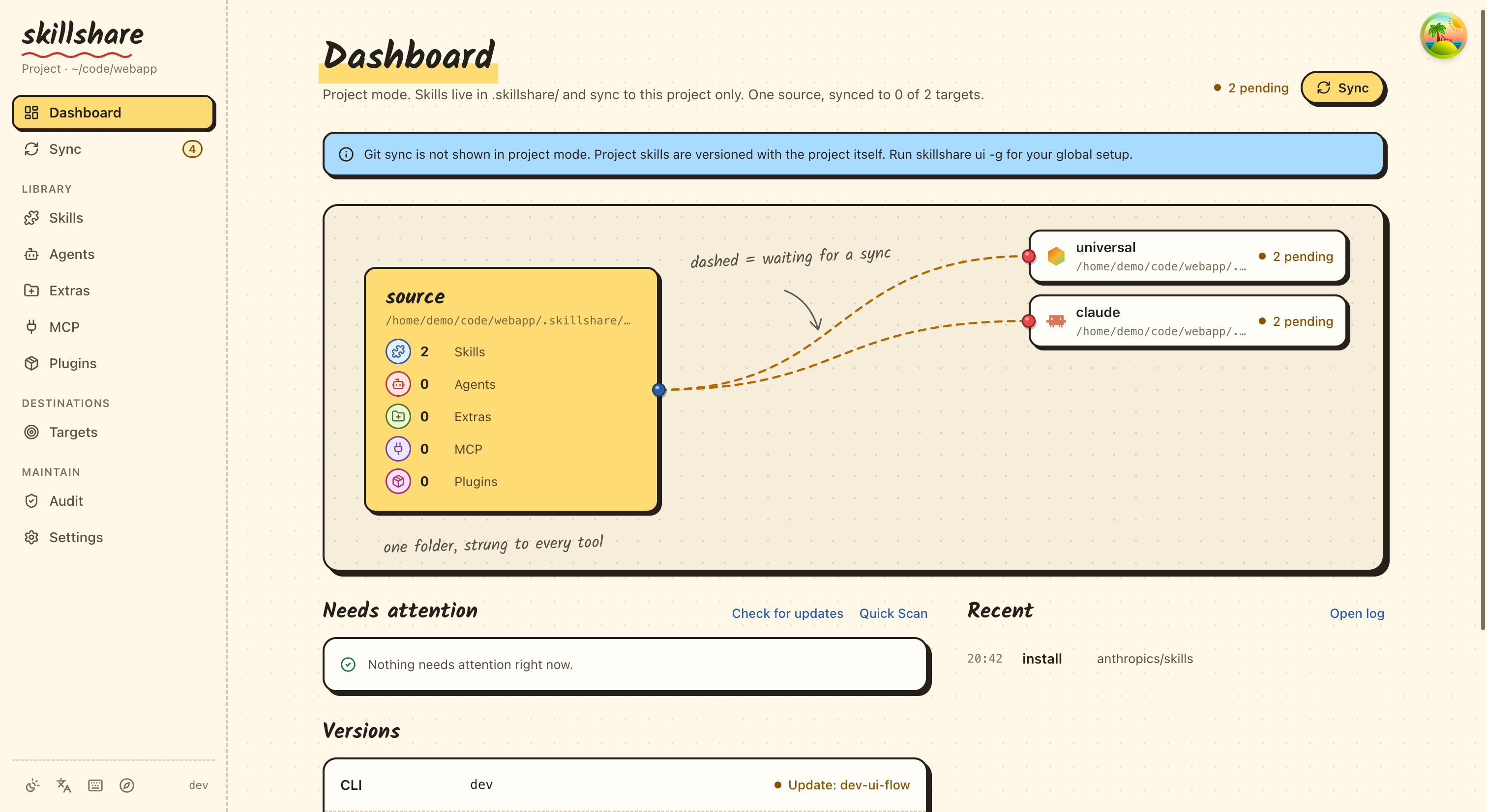
The web dashboard supports project mode — manage skills, targets, sync, and config visually:
cd my-project
skillshare ui -p
Or simply skillshare ui if .skillshare/config.yaml exists (auto-detected).
In project mode, the dashboard:
- Shows
Project · <project path>under the name in the sidebar - Hides Git Sync (use your project's own git)
- Edits
.skillshare/config.yamlunder Settings → Files - Automatically reconciles
skills:entries after installing remote skills
Coexistence with Global Mode
Project and global (organization) skills work independently:
Organization level                  Project level
~/.config/skillshare/skills/        .skillshare/skills/
├── personal-skill/                 ├── project-skill/
└── _company-std/                   └── remote-skill/
         │                                   │
         ▼                                   ▼
   ~/.claude/skills/                .claude/skills/
   (system-wide targets)            (project-local targets)
- Project targets are project-local (e.g.,
.claude/skills/inside the project) - Organization targets are system-wide (e.g.,
~/.claude/skills/) - They don't conflict — different directories, different scope
Real-World Example: Alice's Two Projects
Alice works on a finance app and a marketing dashboard. She has:
- Organization skills: Company coding standards, security audit (available everywhere)
- Finance project skills: Regulatory compliance, financial API conventions
- Marketing project skills: Analytics patterns, A/B testing guidelines
cd ~/finance-app
skillshare status     # Shows finance project skills + org skills in system-wide targets

cd ~/marketing-dash
skillshare status     # Shows marketing project skills + same org skills
Each project gets its own context, while organization standards apply globally.
See Also
- Project Skills — Concept explanation
- Project Workflow — Day-to-day usage
- Organization-Wide Skills — Team sharing
- init — Init with
--project